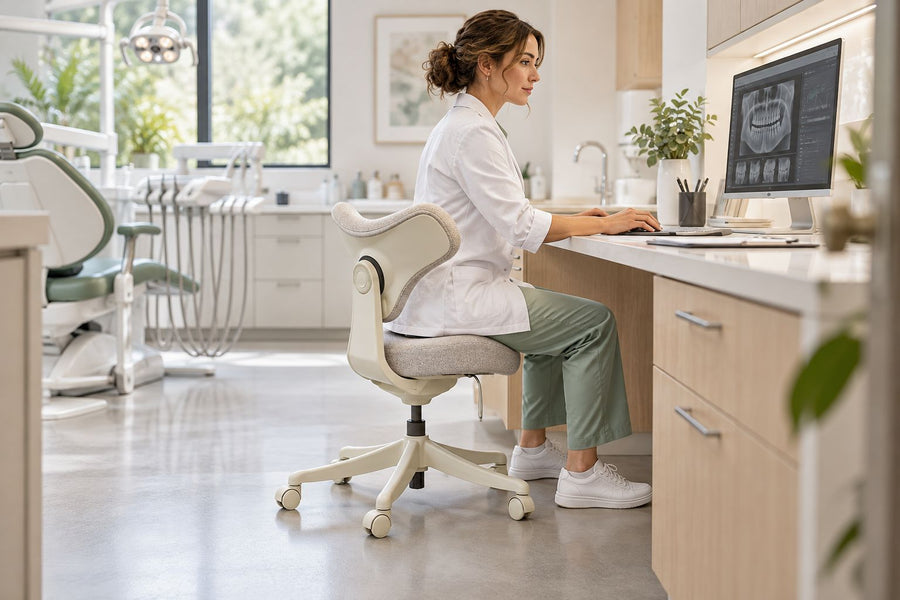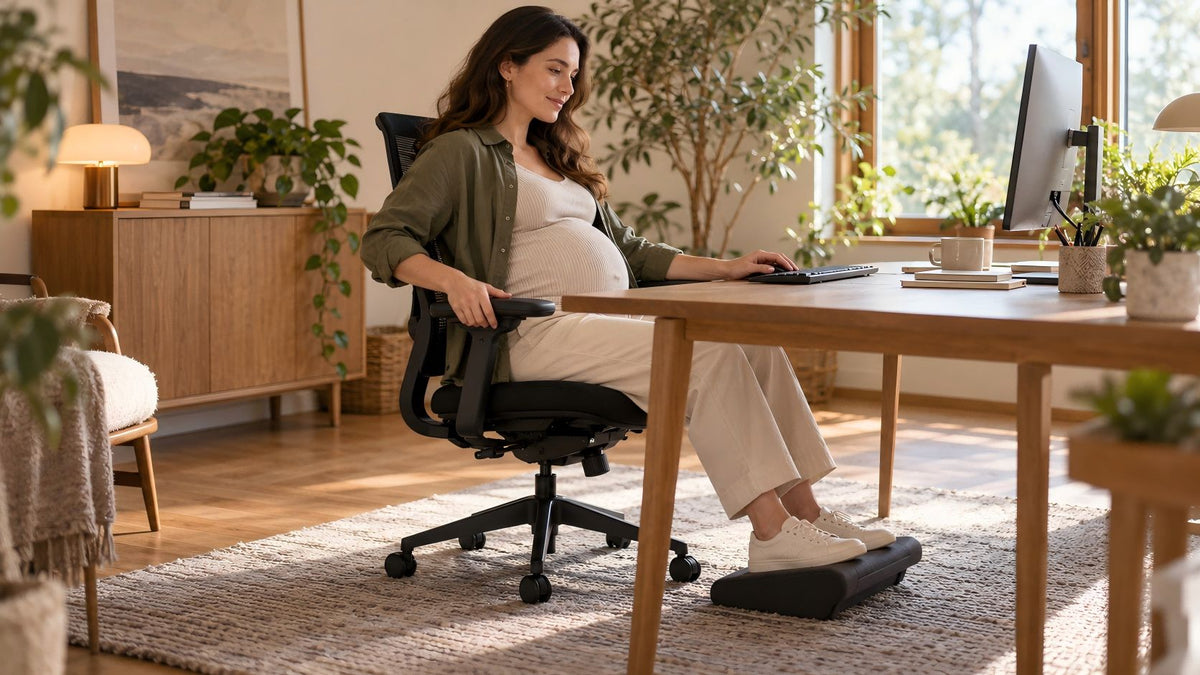
The right ergonomic setup should adapt to your body, support frequent movement, and stay comfortable through a full workday.
To sit more comfortably in an office chair during pregnancy, build the workstation around support, reach, clearance, and easy position changes—not a single “perfect” posture. Start with stable foot support, enough seat depth to use the backrest without pressure behind the knees, gentle lower-back support, and a keyboard and mouse you can reach without leaning around your abdomen. Then test the setup during the work you actually do.
Your comfortable arrangement may change as pregnancy progresses, and a chair adjustment cannot diagnose or treat pregnancy-related pain. If a symptom is new, severe, persistent, getting worse, or not limited to the chair, contact your prenatal care team rather than continuing to experiment with the workstation.
Use a moving target, not a perfect pregnancy posture
Many posture diagrams imply that comfort depends on holding one exact set of angles. Real office work is less tidy. You type, read, talk, write, stand up, and reach for objects. Pregnancy can also change how close you can get to the desk and which contacts feel comfortable. A useful setup therefore gives you a supported starting position plus room to move away from it.
The basic principles are not pregnancy-specific: support the feet and back, keep frequently used controls within easy reach, avoid concentrated pressure, and change position. The pregnancy-specific part is the need to recheck those relationships as your body, symptoms, tasks, or footwear change.
Do not assume that a product labeled “maternity,” an exercise ball, or a special desk accessory has a unique ergonomic benefit. In a small study of 10 pregnant and 18 non-pregnant computer users, a forearm-support board was generally liked but showed no special benefit for the pregnant participants. That study is too small to settle every workstation question, but it illustrates an important rule: evaluate an intervention by what it changes for you, not by its label.
Build one stable starting setup
Make adjustments when the chair is empty, using the manufacturer’s controls and instructions. Do not loosen structural fasteners, add spacers, or force a lever. If the chair drops without warning, has a cracked or bent load-bearing part, will not remain stable, or has uncontrolled movement, stop using it and contact the manufacturer or a qualified service provider.
- Clear the approach, caster area, and standing path.
- Set chair height so the feet have stable floor or footrest support.
- Adjust usable seat depth before adding back support.
- Set gentle backrest or lumbar contact without forcing a curve.
- Bring the keyboard and mouse to that supported position.
- Place the screen for comfortable viewing, then test sitting, working, and standing up.
1. Clear the approach and exit path
Move bags, footstools, loose cables, and storage boxes out of the chair’s rolling and walking path. Check that you can approach the chair, sit down, rotate only as the chair is designed to rotate, and stand up without squeezing between the armrests and desk. A footrest can support the feet, but it should not trap them or block a safe exit.
What to observe: you should not need to twist sharply, pull on the desktop, step over a cable, or push the chair backward into an obstruction. If the route is not clear, fix the space before changing posture.
2. Set height from the feet upward
Choose a seat height that lets both feet rest steadily on the floor. If the desk requires a higher chair position, use a stable footrest that supports the whole usable foot area without rocking or sliding. Avoid a dangling-foot setup even if it makes the keyboard height look right.
Check for broad thigh support without a hard band of pressure at the seat edge. The goal is not an exact hip or knee angle. It is a stable base that does not make you perch, brace through the toes, or press the backs of the legs into the seat. OdinLake’s office-chair height guide covers the control sequence in more detail.
3. Make the seat depth work with the backrest
Sit far enough back to use the backrest, then check the space behind the knees. If the seat pan touches the backs of the knees or makes you slide forward, shorten an adjustable seat depth if the model allows it. If the seat is fixed and too deep, a firm back support may bring you forward, but it also reduces usable seat depth and changes your relationship to the armrests and desk. Recheck everything after adding one.
If you can use the backrest only by losing foot support, the chair may not fit your current body and desk combination. A cushion stack is not a reliable repair for that conflict.
4. Use lower-back support as a contact, not a correction
Adjust the backrest or lumbar support until it provides comfortable, broad contact. A small roll or firm support can be tried if the chair lacks usable lower-back support. Place it where it feels supportive rather than forcing the spine into a dramatic curve.
The NHS pregnancy back-pain guidance recommends keeping the back supported while sitting and advises contacting a clinician or midwife when back pain is very painful. Support is a comfort strategy, not proof that back pain is caused by posture.
5. Bring the input devices to the supported position
Once the chair feels stable, move the keyboard and mouse close enough that your upper arms can stay near your sides. Keep the mouse beside the keyboard rather than beyond a number pad or pile of papers. The desk edge, armrests, and abdomen should not compete for the same space.
If fixed armrests hit the desk and prevent you from getting close enough, lower or remove them only when the manufacturer says that is an intended adjustment. Otherwise, consider a compatible keyboard tray, a different task surface, or another chair. Do not solve a reach problem by balancing on the front of the seat.
6. Place the screen for your supported viewing position
Center the primary screen on the work you do most and place it at a comfortable viewing distance. Set its height so you can read the main content without repeatedly lifting the chin or folding forward. If you use a laptop for long sessions, a separate keyboard and mouse may let the screen and input height be adjusted independently.
General office-ergonomics guidance from the Canadian Centre for Occupational Health and Safety treats chair height, foot support, backrest, arm support, and work-surface height as connected decisions. That system view matters more than copying a single measurement.
Run the three-moment fit check
A setup can look acceptable in a side-view photo and still fail when you enter, work, or get up. Test all three moments below using a normal, low-risk task.
| Moment | Check | What failure looks like | First response |
|---|---|---|---|
| Getting seated | Clear route, stable chair, controls reachable, no desk or armrest squeeze | Twisting, grabbing the desk, stepping over objects, or bumping the abdomen | Clear the route and create more desk clearance before adjusting anything else |
| Doing the task | Feet supported, backrest usable, input close, screen readable, no concentrated pressure | Perching, leaning around the abdomen, reaching with one shoulder, or bracing through the feet | Move the task closer; then recheck chair height, seat depth, and back support |
| Standing up | Feet can move back, chair and footrest stay stable, path remains open | Footrest traps the feet, chair rolls unexpectedly, or desk parts block the knees | Stop and correct the exit path or equipment stability |
Success means all three moments work together. If a change improves typing but makes it harder to stand up, it is not a complete solution.
Match the observation to the first low-risk change
The same discomfort can have more than one cause, so use this table as a workstation routing tool, not a symptom diagnosis.
| What you notice | First workstation check | Do not conclude |
|---|---|---|
| You slide forward to make room at the desk | Desk clearance, fixed armrest collision, seat depth, and keyboard reach | That a softer seat will fix the setup |
| Your lower back feels unsupported only after adding a seat cushion | New seated height, reduced backrest contact, foot support, and armrest height | That more cushions are needed |
| Your shoulders rise while typing | Chair-to-desk height, keyboard position, and armrest interference | That the chair alone is the problem |
| One leg or foot is less comfortable while the other is supported | Footrest size and position, crossed-leg habit, seat-edge contact, and any obstruction | That the pattern identifies a medical cause |
| Comfort changes from morning to later in the day | Task duration, position changes, swelling, footwear, and whether the setup was re-adjusted | That one morning measurement remains correct all day |
| Symptoms also occur away from the desk or continue after changing position | Stop treating the chair as the only variable | That repeated chair adjustments can provide a diagnosis |
Test cushions and supports without creating a new fit problem
A lumbar roll, seat cushion, or footrest can change comfort, but each one changes geometry. A seat cushion raises you, shortens the effective backrest, changes armrest height, and may reduce the safe contact area of the seat. A thick lumbar support moves you forward and reduces usable seat depth. A footrest changes lower-leg position and the space available for standing up.
Try only one accessory at a time. It should sit fully on its support surface, remain stable during entry and exit, and preserve access to the chair controls. Do not stack pillows, place a loose wedge near casters, or use a soft object that folds over the seat edge. If an accessory creates sliding, instability, new pressure, or a blocked exit, remove it.
Exercise balls are not a default substitute for an office chair. They generally lack the backrest, arm support, casters or stable base, and repeatable controls used in a task chair. During pregnancy, balance and safe entry and exit deserve particular attention. Use one only if your prenatal clinician has recommended it for a specific purpose and you have a safe environment—not as an all-day desk-chair upgrade.
Change position before discomfort becomes your timer
There is no universal sitting interval that fits every pregnancy, symptom pattern, job, or stage. Instead of waiting for discomfort to force a change, connect movement to existing task transitions: stand for a call when comfortable, walk to refill water, change from typing to reading, or use a sit-stand surface for a short task if one is available and stable.
The point is variation, not replacing all sitting with all standing. MedlinePlus notes that the ability to work during pregnancy depends on the health of the pregnant person, the health of the baby, and the type of job; its pregnancy-and-work guidance also advises reporting dizziness or lightheadedness and discussing worsening symptoms with a healthcare provider.
If you use a standing desk, keep the seated chair available and the transition path clear. Do not stand on a footrest, loose mat edge, balance board, or moving chair base. Return to a safe seated position if you feel unsteady, lightheaded, unusually short of breath, or unwell.
Keep a short recheck record
When the setup changes, test it with one ordinary task that is long enough to reveal reach and support problems but short enough that you can stop before symptoms build. Record four things:
- Task: typing, video call, reading, or mixed work.
- Change: the one chair, desk, device, or support adjustment you made.
- Observation: where you felt contact or effort during the task, immediately afterward, and later in the day.
- Decision: keep the change, return to the prior setup, or request a different workstation option.
Keep the task and other variables as similar as practical when comparing two settings. A repeatable improvement can justify keeping a setup; it does not prove a medical effect. Stop the comparison at the first clear increase in discomfort, instability, dizziness, or other concerning symptom.
Know when the current chair no longer fits the job
Request a workstation review when you cannot achieve foot support, backrest contact, comfortable seat depth, input reach, and safe entry and exit at the same time. Useful options may include an adjustable footrest, a different input position, a monitor change, an adjustable desk, altered armrests when the model supports it, or a different chair size.
Describe the failed relationship rather than asking only for “a pregnancy chair.” For example: “The fixed armrests hit the desk before I can reach the keyboard while using the backrest,” or “At the height required by this desk, my feet cannot reach the floor and the available footrest blocks my exit.” That gives an employer, ergonomist, occupational health professional, or equipment supplier something specific to solve.
If replacement is appropriate, record your current seat height range, usable seat depth, seat width, armrest spacing and height, backrest contact, desk clearance, and the routes used to sit and stand. OdinLake’s office-chair measurement guide explains how to collect those dimensions. Compare the measurements and adjustment ranges before browsing the ergonomic chair collection; a feature list matters only if the finished setup fits the user and workstation.
When chair adjustment is not the right next step
Contact your prenatal care team about pain that is severe, persists, gets worse, affects normal activities, follows a fall, or occurs in more than one setting. Seek urgent medical guidance for back pain in pregnancy when it occurs with fever, vaginal bleeding, pain when urinating, or pain under the ribs; the NHS also advises emergency care when back pain is accompanied by loss of feeling in the legs, buttocks, or genital area.
For dizziness, fainting, breathing difficulty, chest pain, marked one-sided swelling or pain, vaginal bleeding or fluid leakage, a change in the baby’s movement, or any symptom that feels urgent, do not keep testing chair settings. Follow your prenatal clinician’s instructions and local emergency guidance. An ergonomic article cannot evaluate pregnancy complications.
Frequently asked questions
What is the best sitting position during pregnancy?
There is no single best pose to hold all day. Use a stable, supported starting position with both feet supported, the backrest in comfortable contact, no concentrated pressure behind the knees, and work within easy reach. Change position regularly and recheck the setup when comfort, body shape, tasks, or footwear change.
Should my hips be higher than my knees while pregnant?
A slightly higher hip position may feel comfortable for some people, but it is not a universal pregnancy rule. Prioritize stable foot support, broad thigh support, usable backrest contact, and easy standing. Do not raise the chair so high that the feet dangle or the footrest blocks your exit.
Can I put a pillow behind my lower back?
You can try a small, stable lumbar roll or firm support if it creates comfortable contact. Because it moves you forward, recheck seat depth, foot support, armrest position, keyboard reach, and your ability to stand. Remove it if it creates pressure, sliding, or a new reach problem.
Is an exercise ball better than an office chair during pregnancy?
Not as a general desk-work replacement. An exercise ball lacks many support and adjustment features of an office chair and can make entry, exit, and balance more demanding. Use it only for a specific purpose discussed with your prenatal clinician and in a safe environment.
How often should I get up from my office chair while pregnant?
No fixed interval suits everyone. Change position before discomfort builds, use natural task transitions as movement cues, and follow individualized advice from your prenatal clinician. If sitting or standing triggers symptoms quickly or unpredictably, request a workstation and health review.
Do I need to buy a special office chair for pregnancy?
Not necessarily. First check whether your current chair and desk can provide foot support, suitable seat depth, comfortable back support, close input reach, adequate clearance, and safe entry and exit. Consider replacement only when a specific fit conflict cannot be solved safely with the available adjustments or workplace options.