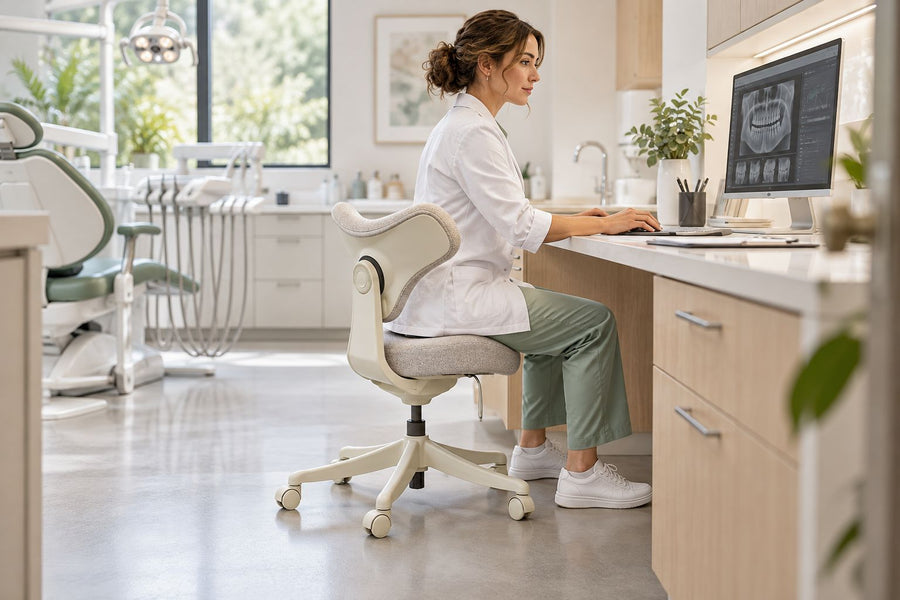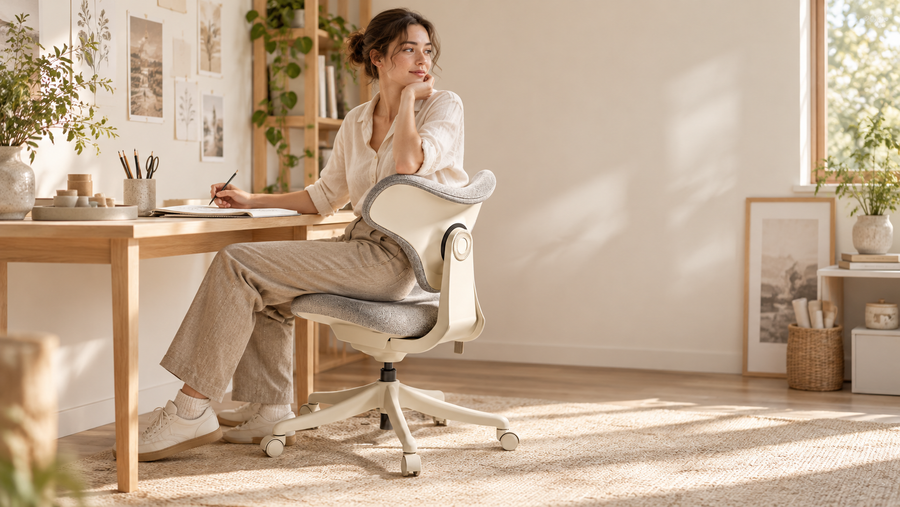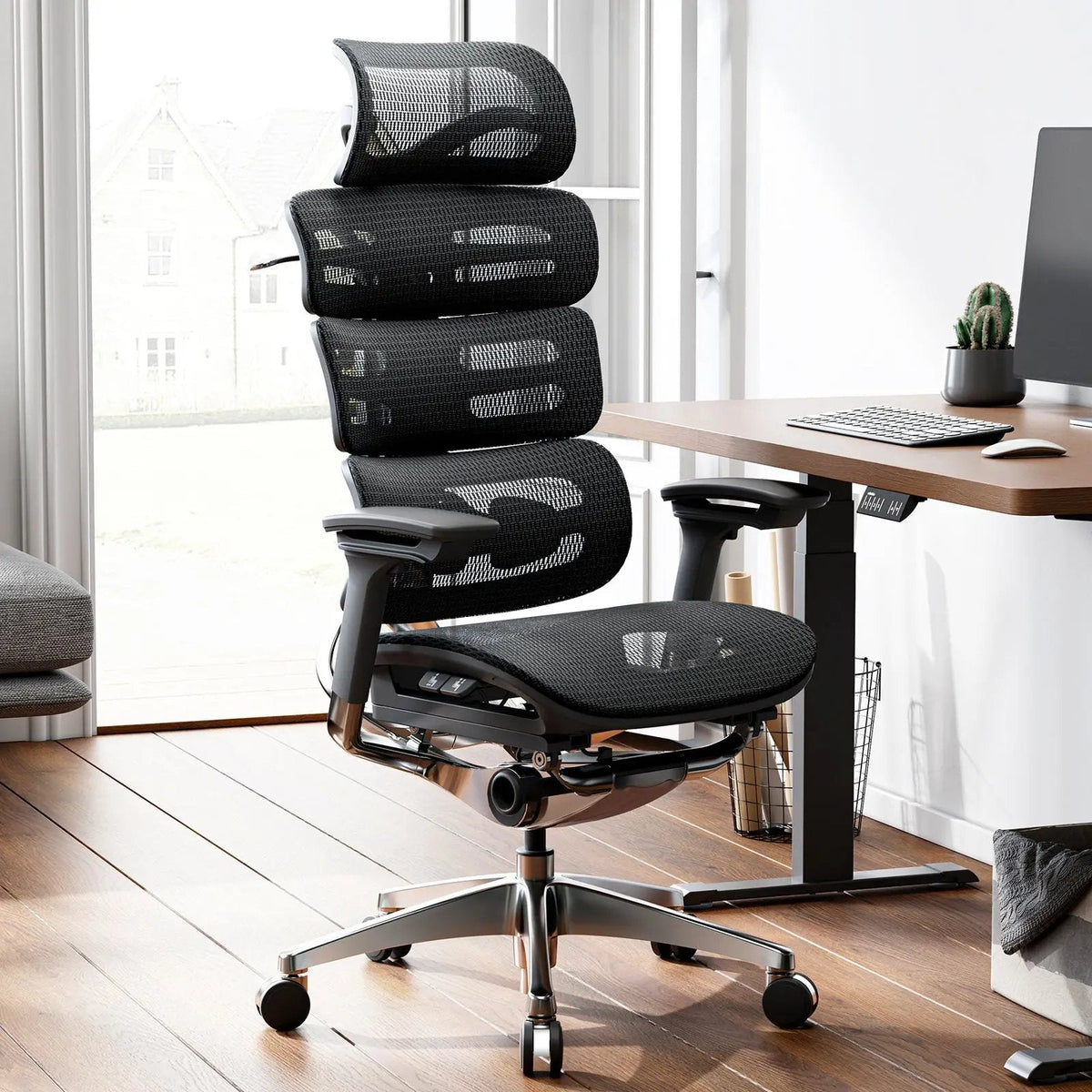
The right ergonomic setup should adapt to your body, support frequent movement, and stay comfortable through a full workday.
You can use a recliner as an office chair for occasional reading, calls, or other low-input tasks, but most living-room recliners are a poor match for regular keyboard-and-mouse work at a conventional desk. The deciding factor is not whether the recliner feels comfortable for ten minutes. It is whether the chair, work surface, screen, and input devices can meet while your back stays supported, your shoulders remain relaxed, and you can enter, exit, and change position without obstruction.
Start by separating two products that sound similar. A recliner is a lounge chair built around a deep seat, a large backrest, and often a leg rest. A reclining office chair is a task chair designed to approach a desk, support an upright working position, and then allow controlled recline. A chair can recline without being a living-room recliner, and the two are not interchangeable simply because both lean back.
Start with the work, not the chair
The same recliner can be acceptable for one task and unsuitable for another. Before measuring anything, write down what you intend to do, how long a typical session lasts, and which devices you must operate continuously.
| Work pattern | Likely role for a recliner | Main condition to verify |
|---|---|---|
| Reading, reviewing documents, or watching a presentation | Possible secondary work position | The screen can be viewed without holding it or bending the neck forward |
| Phone calls or video meetings with little typing | Possible short-session position | Audio, camera, and controls remain usable while the head and back are supported |
| Email or light laptop use | Conditional, usually with separate support for the device | The screen and input surface can be positioned independently |
| Writing, coding, design, gaming, data entry, or mouse-intensive work | Usually a poor primary-chair match | Keyboard and mouse must stay close while the back remains supported |
| A brief change from a desk setup | Useful as a break or alternate position | The change does not become an unsupported, hours-long work session |
This task-first distinction is consistent with St. Lawrence University’s temporary home-office guidance, which treats a couch or recliner as a fallback setup and recommends checking arm room, input-device space, seat stability, and foot support. The point is not that reclining is inherently wrong. It is that a laptop combines the screen and keyboard, while a supported reclined posture often requires them to be at different locations.
Run a seven-field desk-interface test
Do this test before buying accessories or attempting a full workday. Use the recliner, desk, computer, and peripherals you actually own. Record each relevant height, depth, and clearance in both inches and centimeters so you can compare the same fields with a desk or chair specification later. Do not infer fit from product photos or from the recliner’s overall dimensions.
- Record the working seat height. Sit in the position you would use for typing—not at maximum recline—and compare your elbow height with the keyboard surface. If you must lift your shoulders or reach upward, the work surface is too high relative to the seat.
- Check usable seat depth. Sit with your back supported. If the deep cushion keeps your back away from the backrest, or the seat edge presses into the area behind your knees, the chair is not supporting you in the intended working position.
- Measure chair approach. Move the chair toward the desk only as the manufacturer intends. Fixed arms, side panels, the leg-rest mechanism, or the chair’s base may stop the seat far from the keyboard.
- Test keyboard and mouse reach. With your shoulders relaxed and upper arms near your torso, place both hands on the input devices. If your back leaves the backrest, your elbows reach forward, or one device sits off to the side, the interface fails.
- Test the screen separately. Face the display without twisting. Confirm that text is readable without pushing the head forward or holding a laptop in place. If moving the screen improves viewing but makes the keyboard unreachable, the laptop needs separate input devices or the setup is not suitable.
- Check clearance through movement. Verify room for your thighs, legs, feet, recline path, leg-rest path, and a clear way to stand up. A powered recliner also needs a cord route that remains clear of the moving mechanism and walking path.
- Check position changes. Move between the intended working angle, a more relaxed angle, and standing. The desk, equipment, cables, and chair should not collide, catch, tip, or require you to climb around the furniture.
OSHA’s computer-workstation evaluation checklist connects these fields: the back should be supported, shoulders relaxed, elbows close to the body, wrists aligned, and the user should have enough thigh, leg, and foot clearance to approach the input devices. This is why a soft chair cannot be evaluated apart from the desk and computer.
Use a pass, conditional, or fail result
Do not average the seven fields into a vague comfort score. Classify the proposed setup by its weakest necessary field.
| Result | What it means | Next action |
|---|---|---|
| Pass for the task | Back support, input reach, screen position, clearance, and movement all work for the defined short task | Use the setup for that task and recheck it if the desk, device, or session length changes |
| Conditional | The chair can support the task only after separating the screen from the keyboard, adding a stable work surface, or shortening the session | Test the complete revised setup before relying on it |
| Fail for primary desk work | Fixed arms, low seat height, excessive depth, footprint, or recline geometry prevents a supported desk position | Keep the recliner for breaks and use a task chair that fits the user and workstation |
| Stop and investigate | The chair moves unexpectedly, a mechanism or cord is damaged, the support surface is unstable, or compatibility is unknown | Stop using the proposed setup and consult the relevant product instructions or support |
A conditional result is not automatically a recommendation to buy more equipment. If an external keyboard, mouse, tray, or monitor cannot be positioned securely without creating a new reach or clearance problem, the simpler answer is to return computer work to a desk-and-task-chair setup.
Where living-room recliners usually fail at a desk
The seat is low while the desk is fixed
Many recliners place the user lower than a task chair. At a fixed desk, that can put the keyboard above elbow height and encourage raised shoulders. Raising the keyboard surface is not always possible, and raising the recliner with unapproved blocks or platforms can compromise stability.
The seat is too deep for supported typing
A deep seat may feel spacious in a lounge posture but can leave a shorter user unable to use the backrest while keeping the knees clear of the seat edge. A pillow may change the usable depth for a brief trial, but it does not add seat-height adjustment, shorten fixed arms, or establish that the recliner is suitable for prolonged desk work.
Fixed arms stop the chair before the keyboard
Large recliner arms often collide with the desk edge. The user then reaches forward while the back separates from the backrest. OSHA notes that inappropriately placed armrests can keep a chair from approaching the keyboard and lead to forward reaching. CCOHS office-chair guidance similarly treats the seat, work surface, and floor as an interacting system and advises checking whether the user can sit comfortably with the legs under a fixed-height workstation.
The chair needs more operating space than the room provides
A recliner may need room behind the backrest and in front of the leg rest. A wall, desk leg, storage unit, or power cable can turn a seemingly open corner into a blocked movement path. Measure the chair upright and in every intended position; the closed footprint alone is not enough.
A laptop forces one compromise
When the laptop keyboard is placed where the hands can reach it, the screen may sit too low or too close. When the screen is raised, the keyboard moves with it. The University of Pennsylvania’s current home-office guidance recommends external input devices when a laptop is used regularly so the screen and hands can be positioned independently.
When a recliner can still be useful
A recliner can serve as a separate reading, recovery, or call station when the task requires little repeated input and the screen or document has stable support. It can also give a worker another position during the day. In that role, it complements the main workstation instead of pretending to be the same tool.
For short laptop sessions, a firm tray may provide a stable surface, but it must be large enough for the device and any input equipment, remain stable in the intended chair position, and avoid blocking ventilation specified by the computer manufacturer. Do not balance a laptop on an extended leg rest, soft cushion, or moving arm. If a separate keyboard and mouse are used, they still need a secure surface that keeps both devices within easy reach.
If a reclined work position is part of a disability accommodation, recovery plan, or response to persistent symptoms, the decision should be individualized with the employer’s accommodation process or an appropriate qualified professional. This article can help document the task and workstation fields, but it cannot determine a medical treatment or suitable accommodation.
Do not modify a recliner into a task chair
Do not add office-chair casters, alter the load-bearing frame, mount the recliner on improvised blocks, or remove fixed structural parts to make it fit a desk. A stable support under a desk leg is not evidence that the same method is safe under a moving chair carrying a person. Use the recliner only on the surface, base, and power arrangement permitted by its manufacturer.
For a powered model, inspect the cord and transformer before the trial, keep them out of pinch points and walking routes, and stop if the mechanism behaves unexpectedly or any component is damaged. For a manual model, keep hands, cables, and nearby objects clear of the moving linkage. Do not use the leg rest as a computer table or step.
Choose the next step from the failed field
- If screen position fails but input reach passes: try a stable display support or external monitor that the equipment manufacturer permits.
- If the attached laptop causes the conflict: test an external keyboard and mouse on a stable surface while the laptop or monitor is independently positioned.
- If chair approach fails: do not compensate by leaning. A different work surface or a task chair with suitable armrest and desk clearance is the more direct solution.
- If seat height or depth fails: choose a chair whose adjustment range fits the user and work surface. Do not rely on an unstable stack of cushions or furniture blocks.
- If the recliner works only for low-input tasks: define it as an alternate station and keep keyboard-intensive work at the primary desk.
A task chair is not automatically a good fit merely because it has wheels and adjustments. CCOHS emphasizes that a chair becomes ergonomic only when it suits the person, workstation, and tasks. When you compare alternatives, use the same seven fields rather than shopping by the word “ergonomic” alone.
If the recliner fails the desk-interface test, compare current options in OdinLake’s ergonomic office chair collection. A reclining task chair can provide a supported upright work position and an alternate reclined position within its documented range. After choosing a chair, use the model instructions and the separate office chair tilt and recline guide to identify its controls and test one adjustment at a time. For model or fit questions, send your body measurements, desk height, desk-clearance dimensions, and main tasks to OdinLake support.
Frequently Asked Questions
Can I use a recliner as my main office chair?
You can only justify it if the recliner passes the seat-height, seat-depth, desk-approach, input-reach, screen-position, clearance, and movement checks for your normal work. Most living-room recliners fail one or more of those fields for sustained keyboard-and-mouse work, so they are usually better as a secondary position than a primary office chair.
Is a recliner good for computer work?
It may work for short, low-input tasks such as reading or calls. For regular computer work, the screen and input devices must be positioned so your back remains supported, shoulders stay relaxed, and hands reach the keyboard and mouse without leaning. A laptop alone often cannot satisfy both screen and input positioning.
Is a recliner better than an office chair for back pain?
No chair type can be declared universally better for back pain. Comfort and fit depend on the person, task, workstation, and ability to change position. Persistent, severe, or worsening symptoms need appropriate professional evaluation; do not use a chair comparison as a diagnosis or treatment plan.
Can I work from a recliner with a laptop?
For a short session, possibly, if the laptop rests on a stable, ventilated surface and you can view the screen without hunching. For regular use, an external keyboard and mouse can allow the screen and input devices to be positioned separately. Stop if the tray is unstable, blocks safe entry or exit, or interferes with the chair mechanism.
What is the difference between a recliner and a reclining office chair?
A living-room recliner prioritizes lounge seating, a deep supported position, and often a leg rest. A reclining office chair is designed to approach a work surface, support an upright task position, and then recline through a controlled range. The intended interface with a desk is the important difference.
Can a recliner fit under a desk?
Some can approach a desk, but many are stopped by fixed arms, side panels, a low seat, a wide base, or the leg-rest mechanism. Measure the clear desk opening and test the chair through its intended movement. Do not remove structural parts or raise the recliner on improvised supports to force a fit.