The right ergonomic setup should adapt to your body, support frequent movement, and stay comfortable through a full workday.
Quick answer: To reset a standing desk safely, first identify the exact model and check its manual. Clear everything above and below the moving frame, inspect the power and motor connections, remove excess load, and let an overheated motor cool. Then use the manufacturer’s reset sequence—often, but not always, a controlled move to the lowest position while holding the down control. Stop if the legs move unevenly, a cable is damaged, or the desk makes grinding noises.
A reset is calibration, not a universal cure. It can restore the controller’s reference point after a power interruption, relocation, overload, or interrupted movement. It cannot repair a damaged lifting column, control box, handset, or cable. The practical workflow below helps you decide which situation you have before you keep pressing buttons.
When Does a Standing Desk Need a Reset?
A reset is a reasonable first step when the desk has power but behaves as though it has lost track of its position. Common signs include:
- The display shows RST, ASr, or a model-specific error code.
- The desk moves down but will not move up.
- The desk stops at the same height even though the path is clear.
- The height readout no longer matches the physical desk height.
- The problem appeared after a power outage, unplugging, moving, or reassembling the desk.
- The desk stopped after several adjustments in a short period.
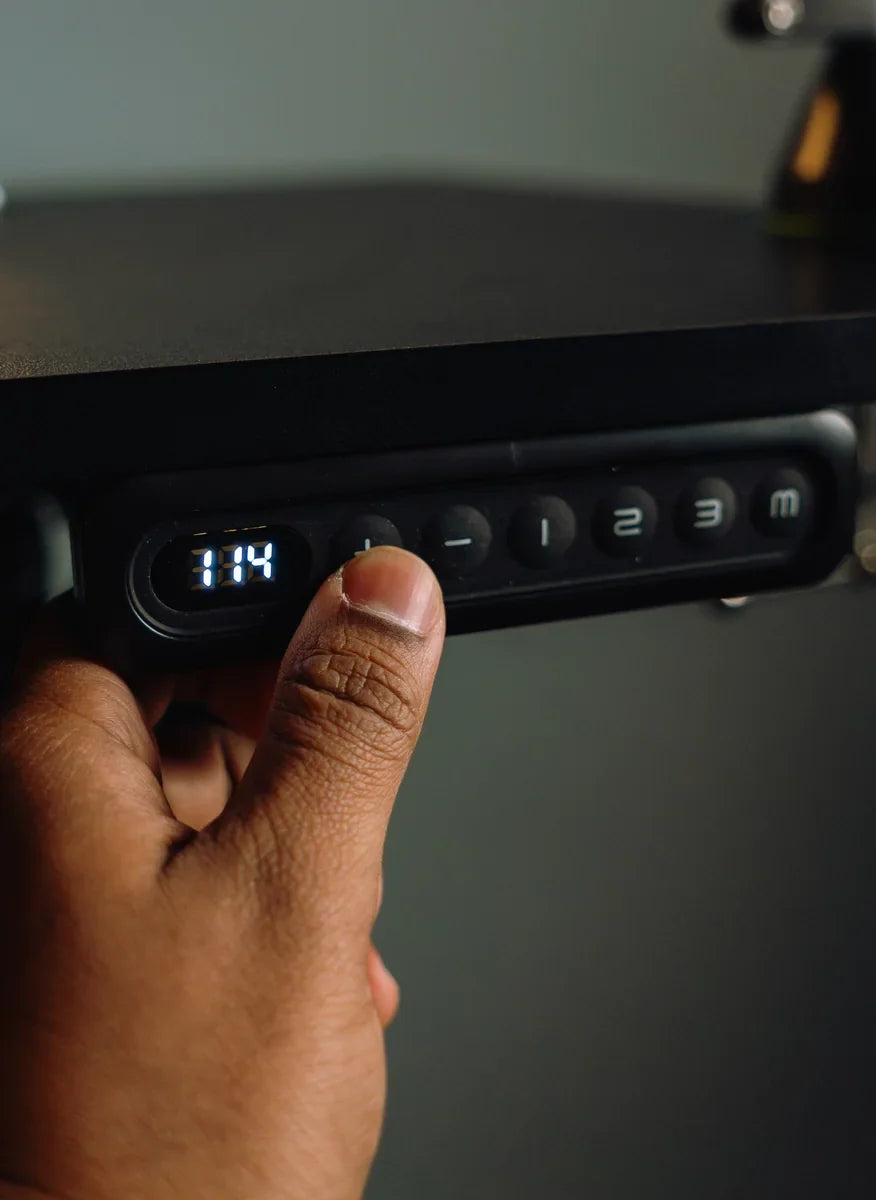
Do not assume that identical-looking keypads use identical procedures. One control system may use a long press on the down arrow, while another may require a memory-button combination before the display enters reset mode. Published model manuals differ on both the sequence and the expected display behavior, so your desk’s exact manual remains the controlling source.
Decide Whether Resetting Is Appropriate
| What you observe | Best next action | Why |
|---|---|---|
| RST, ASr, or a reset prompt appears | Follow the exact manual procedure | The controller is requesting recalibration. |
| No display and no movement | Verify the outlet, power cord, control box, and handset connections | A calibration sequence cannot run without power and control communication. |
| The desk stopped after repeated cycling | Stop using it and allow the motor to cool for the time specified in the manual | Some systems temporarily disable motion to protect against motor overuse. |
| The desk is heavily loaded or a cable is pulled tight | Reduce the load and clear the full travel path before resetting | Overload and obstructions can interrupt travel and immediately recreate the fault. |
| One leg moves differently, the frame tilts, or you hear grinding | Stop and contact support | Continuing may damage the frame, desktop, equipment, or lifting system. |
| A cable or connector is pinched, loose, scorched, or visibly damaged | Disconnect power and request service | A reset does not correct physical or electrical damage. |
Before You Reset: Make the Desk Safe to Move
Treat the first full movement after a fault as a test cycle. Move fragile items away from the edges, remove anything stored under the desk, and confirm that drawers, shelves, wall outlets, window sills, chair arms, and cabinets are outside the travel path. Check that monitor and power cables have enough slack at both the lowest and highest positions.
If the desktop carries several monitors, a desktop computer, speakers, books, or exercise equipment, remove nonessential weight. Use the load limit published for your exact desk; there is no safe universal capacity. Weight should also be distributed according to the manufacturer’s guidance rather than concentrated at one corner or a single monitor-arm clamp.
Next, inspect only the external, user-accessible connections named in the manual: the wall plug, power cable, handset lead, motor leads, and control-box plugs. Turn off or unplug the desk before reseating a connection if the manual tells you to do so. Do not open the control box, motor, lifting column, or power supply.
How to Reset a Standing Desk Safely
- Identify the model. Find the product label, order record, manual, or support page. A product family name alone may not be enough when different generations use different keypads.
- Record the symptom. Photograph the display and note what happened immediately before the fault. This gives support a useful starting point if the reset fails.
- Clear the travel path. Remove obstacles and excess load. Make sure cables cannot snag as the desk descends.
- Check power and plugs. Confirm the outlet works and all approved external connections are fully seated. If you see damage, stop.
- Wait when overuse is likely. If the desk stopped after repeated up-and-down operation or the manual identifies a thermal-protection code, allow the specified cooling period before trying again.
- Run the model-specific sequence. Many electric desks require a continuous command toward the lowest position until the controller confirms initialization. The exact button, hold time, display message, and finishing movement vary, so copy them from the manual rather than another brand’s video.
- Complete one unloaded test cycle. Move the desk through its normal range while watching both legs, cables, and clearances. Stop immediately if the frame tilts, binds, or makes a new mechanical noise.
- Restore presets and ergonomics. A reset may erase stored heights. Re-establish sitting and standing positions only after the desk moves normally.
For an OdinLake desk, use the instructions supplied with the specific model or ask OdinLake customer support to confirm the correct sequence. Include the model, order information, display code, a clear photo of the keypad, and a short video of the behavior. OdinLake’s public support page lists email, phone, Help Center, and assembly resources for U.S. customers.
Why a Standing Desk Reset Can Fail
The desk cannot reach its reference position
Many controllers calibrate at a defined lower position. A cable tray, file cabinet, under-desk treadmill, CPU holder, wall trim, or taut cord can interrupt that movement. Remove the obstruction and check the full route—not just the few inches around the current height.
The system is protecting itself from load or heat
A desk may stop temporarily when its controller detects overload, overcurrent, or excessive cycling. The correct response is not repeated button pressing. Reduce the load, stop movement, and observe the rest period and duty cycle in the manual. Error-code meanings are not standardized across brands, so do not translate one company’s E01 or H01 code to another company’s product.
A connection is loose or damaged
Motor and handset communication depends on correctly seated external plugs. If a connector has worked loose during a move, the legs may not receive matching commands. Reconnect only the plugs the manufacturer permits users to access. If a pin is bent, a cable is cut, or a connector is discolored, disconnect power and request service.
The fault is mechanical or electronic, not calibration
A reset cannot straighten a damaged frame, repair a motor, replace a faulty sensor, or restore a failed control box. Stop troubleshooting when the desk is uneven, one column does not respond, the controller repeatedly returns the same fault, or the reset succeeds only briefly. Repeated forced movement can turn a serviceable fault into additional damage.
After the Reset: Rebuild a Reliable Desk Setup
Once the desk completes a normal unloaded cycle, add equipment back gradually. Route power and signal cables with a service loop so they remain relaxed at both height limits. Test the desk again after reinstalling a monitor arm or under-desk accessory, because these components can add concentrated load or create hidden interference.
Then restore your working heights. OSHA’s computer-workstation guidance recommends a layout that supports neutral joint positions, adequate leg clearance, and easy component placement. Keep the keyboard and mouse close, the shoulders relaxed, and the main monitor directly in front of you. The goal is not a single perfect height; it is a setup that lets you change between supported positions without obstruction.
For a more detailed fit check, use OdinLake’s standing desk height guide. If you are comparing a replacement desk, review the OdinLake standing desk collection and verify the height range, load rating, desktop size, warranty, and support terms for the exact model.
When to Stop and Contact Support
Stop using the desk and disconnect power when safe to do so if you notice visible cable damage, liquid in an electrical component, smoke, a burning smell, sparks, severe frame tilt, grinding, or uncontrolled movement. Do not crawl under a powered desk while another person operates it, and do not open electrical components.
Contact support when the official reset procedure fails twice, the code returns immediately, only one leg moves, or the problem started after impact or liquid exposure. Send the model and serial information, purchase details, error code, symptom timeline, and photos or video. That evidence helps the support team distinguish a setup issue from a part that may need service.
Frequently Asked Questions
Why does my standing desk only go down?
The controller may have lost its position reference and be allowing only downward travel until initialization is complete. It can also indicate an obstruction, limit setting, or model-specific error. Clear the path, record the display, and follow the exact manual rather than forcing upward movement.
What do ASr and RST mean on a standing desk?
They commonly indicate that the controller is in or requesting a reset or initialization mode. The letters do not tell you the complete procedure. Use the manual for your exact desk and keypad because the next button, hold time, and confirmation movement differ by system.
Will unplugging a standing desk reset it?
Unplugging can clear a temporary power state, but it may not recalibrate the desk. Some products require a specific power-cycle interval followed by a button sequence; others retain settings. Follow the manufacturer’s hard-reset instructions and do not randomly disconnect motor cables while power is connected.
Why is my standing desk not moving after a power outage?
The controller may need to re-establish its lower reference point after power is restored. First confirm the outlet and plugs, clear the travel path, and check for a reset message. If the desk remains dark or moves unevenly, stop and contact the manufacturer.
Does resetting a standing desk erase the memory presets?
It can. Some controllers preserve stored sitting and standing heights, while others return to default settings. After a successful test cycle, check each preset before placing equipment near shelves or cabinets, then save new heights according to the model’s instructions.
How many times should I try to reset a standing desk?
One careful attempt using the correct manual is usually enough to show whether calibration is the issue. A second attempt is reasonable after correcting an obvious obstruction, loose approved connection, overload, or cooling requirement. If the same fault returns, stop cycling the desk and contact support.