Compare desktop, under-desk mount, side-stand, and floor placement for a PC tower, then verify load, airflow, cable travel, and working clearance.
The right ergonomic setup should adapt to your body, support frequent movement, and stay comfortable through a full workday.
Put a PC tower where it can stay level, breathe freely, avoid feet and chair movement, and keep every cable relaxed from the standing desk’s lowest position to its highest. For many setups, that means either on the desktop or on a hard, stable platform beside the desk. A compatible under-desk mount can also work, but only when the mount, computer case, desktop, and desk frame are all approved for the combined load and attachment method.
The floor is not automatically wrong, and the desktop is not automatically better. The deciding question is whether the tower should move with the desk. Once you answer that, you can compare weight, usable surface area, ventilation, cable travel, legroom, and access without relying on appearance alone.
Choose which side of the moving boundary the PC belongs on
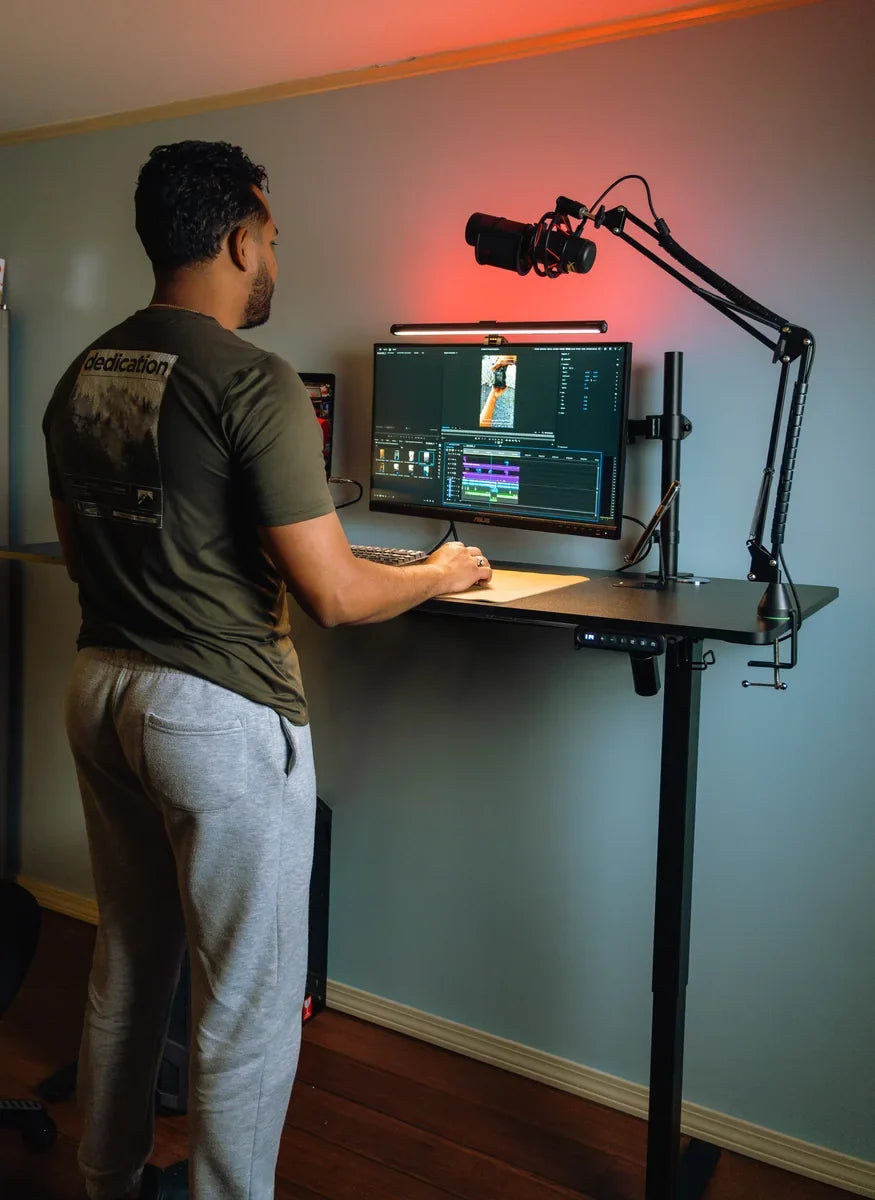
A standing desk creates a moving boundary between equipment attached to the desktop and equipment that remains fixed in the room. A tower on the desktop or in an approved under-desk holder moves with the desk. A tower on the floor, a side stand, or a separate cabinet stays fixed.
This distinction changes more than the look of the setup:
| PC location | Moves with desk? | Main advantage | Main constraint | Reject the option when |
|---|---|---|---|---|
| On the desktop | Yes | Short device cables and easy access | Uses work surface and adds moving load | The case crowds the monitor or input area, sits near an edge, blocks a vent, or exceeds the desk’s documented limits |
| In a compatible under-desk mount | Yes | Preserves desktop space while keeping device cables with the desk | Requires verified case fit, mount capacity, attachment points, and frame clearance | The desk manufacturer does not approve the attachment method or the holder obstructs the case, frame, controls, or knees |
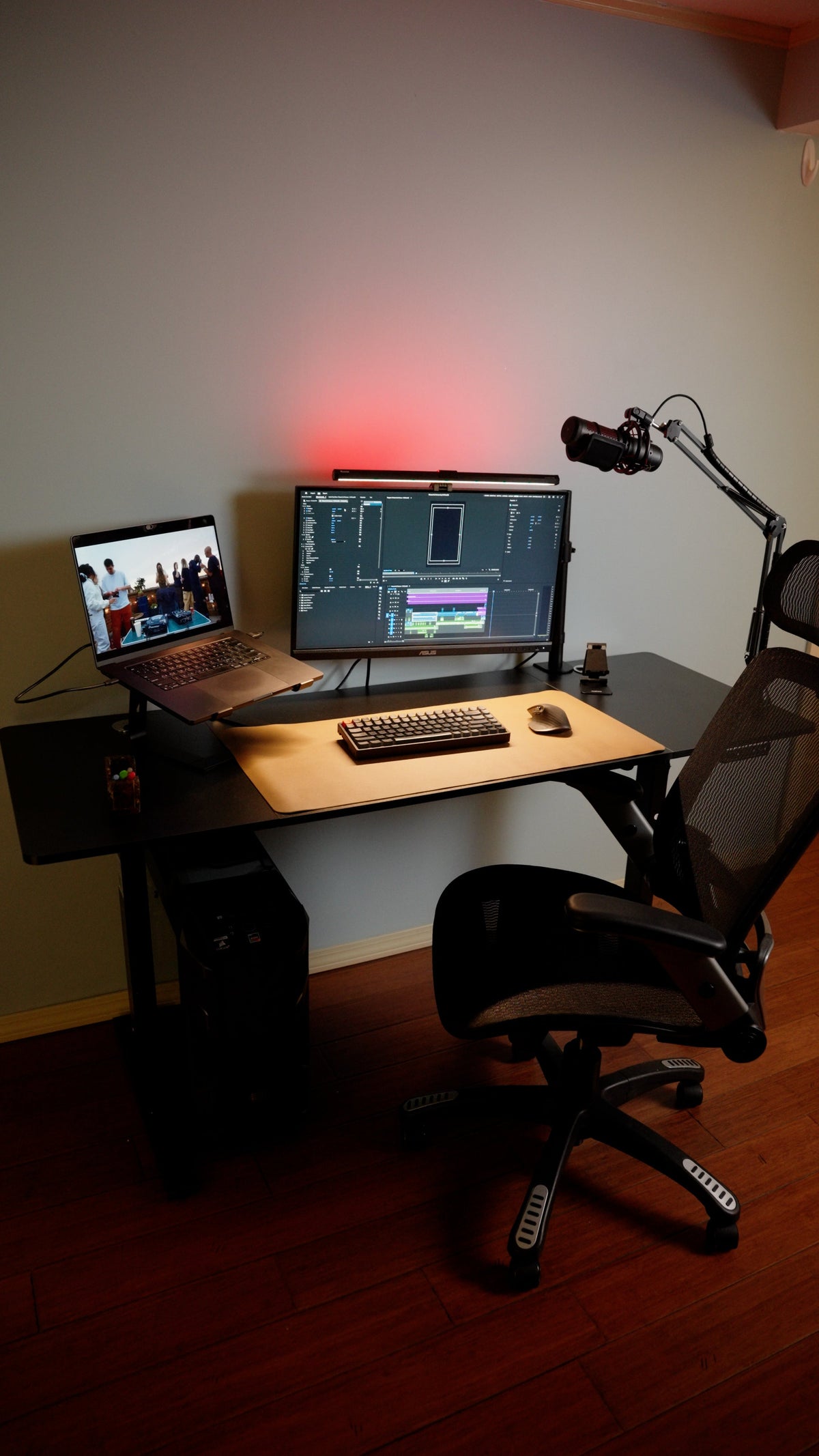
| On a hard platform or stand beside the desk | No | Removes tower weight from the moving desk | Display, USB, audio, and other device cables must span the desk’s full travel | The stand is unstable, the tower enters a walkway, or cables pull at either height limit |
| On the floor | No | Uses no desktop area and needs no accessory mount | Greater exposure to feet, chair casters, dust, spills, carpet, and cable strain | The surface blocks a bottom intake, the case sits in the chair path, or the computer manual requires another surface |
If two locations pass every check, choose the one that leaves the working area easier to use and the tower easier to inspect. A visible, reachable power button, filter, and rear port panel are practical advantages; a “hidden” tower is not useful if routine access requires moving the desk or pulling cables tight.
Measure the tower, the desk, and the travel path
Do not buy a mount or rearrange the workstation from product photos. Record the actual dimensions and restrictions of the equipment you own.
Map the PC case, including its vents and cables
Measure the case width, depth, and height with its feet installed. Then add the connectors that project from the rear, top, or front. A 17-inch-deep case can need substantially more usable depth once a rigid display plug, power connector, or Wi-Fi antenna is attached.
Mark every intake and exhaust opening. The computer or case manual controls the required orientation and clearance. As an example of why this matters, Dell’s desktop-care guidance tells users to keep vented sides clear, use a hard and level surface, avoid soft fabric surfaces such as carpet, and keep the area under the desk free of obstructive cables. Do not copy Dell’s exact clearance to a different computer unless that computer’s documentation supports it.
Calculate the moving load instead of checking the tower alone

If the tower will move with the desk, list everything that the lifting system already carries: desktop equipment, monitors, monitor arms, speakers, docks, drawers, cable trays, adapters, and other attached accessories. Add the tower and any holder to that list. Compare the total with the current desk manual, including any instructions about distributed loads or accessory attachment.
A rating is not permission to place all weight at one corner. Keep the case fully supported and follow the manufacturer’s load-distribution guidance. If the product page and manual disagree, use the current manual or ask the manufacturer before moving a heavy tower with the desk.
Record the full travel distance
Set the desk once at its lowest approved working position and once at its highest. At both positions, measure the route from the tower’s ports to the display, keyboard, mouse, dock, audio gear, network connection, and wall power. Include the route around the rear edge or cable tray; a straight-line measurement through a desktop is not usable.
The goal is not to create the largest hanging loop. It is to find a route that remains relaxed at both limits without dropping into the chair, foot, frame, or walkway area.
When the PC moves with the desk
A moving tower simplifies one part of the system: the computer, display, and desktop peripherals maintain nearly the same relationship as the desk rises. The trade-off is that the tower becomes part of the moving load and must remain secure during every transition.
Desktop placement
Place the tower with all feet on a flat, load-bearing part of the desktop. Keep it away from an unsupported seam, flip-up panel, control opening, and any edge where a bump could move it. Check that the tower does not force the primary monitor or keyboard away from the user’s working centerline.
Before deciding, outline the tower footprint with painter’s tape. Use the desk for a normal task and confirm that the remaining surface still accommodates the monitor base or arm, keyboard, mouse, and any materials used daily. If the tape forces a compromised layout, the desktop option has failed even if the tower technically fits.
Under-desk mount placement
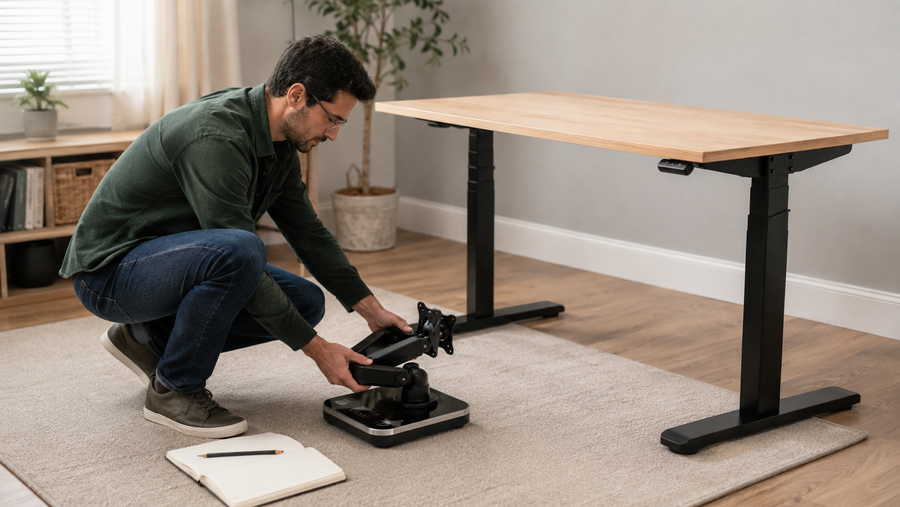
Use only a holder whose documented size range and capacity cover the complete computer case. Verify the desk’s approved mounting area, desktop material and thickness, frame position, moving components, control box, and cable tray before installing anything. Do not drill into the desktop, frame, column, or enclosure unless the current desk instructions explicitly allow that location and method.
After mounting, confirm that the holder supports the case without covering a vent, pressing a glass side panel, or relying on a loose strap. The tower and holder must clear knees, chair arms, drawers, frame crossmembers, and the floor at the desk’s lowest position. If the case can sway, slide, or rotate during a slow height change, stop and correct the fit before using the desk.
When the PC stays fixed beside the desk
A fixed tower keeps its weight off the lifting system. This is often the cleaner choice when the desktop is shallow, the case is heavy, the desk has no approved mount location, or the computer needs frequent internal or rear-panel access.
Use a stable surface that does not block the case
A side stand or platform should be flat, stable, large enough for every case foot, and rated for the tower. It should not rock when a cable is connected or when the desk moves. Keep it out of the chair’s rolling envelope and away from the route used to sit, stand, or leave the workstation.
Do not place a case directly on thick carpet when a bottom intake or the manufacturer’s instructions require a hard surface. A rigid stand can separate the case from carpet, but it still needs to preserve the documented vent clearance and remain stable. Do not improvise with a box, stack of books, or narrow shelf.
Keep the fixed tower independent from the moving top
A side cabinet can work if it does not support, touch, or trap the height-adjustable desktop at any point. Leave clearance for the desktop edge and moving frame throughout the complete travel range. Also check doors, windows, wall trim, and monitor arms; a tower location is not safe if it solves one collision by creating another.
Build the cable route around the chosen location
If the tower moves with the desktop, most computer-to-device cables can remain within the moving system. The remaining connections to fixed points—commonly wall power and wired networking—still need a controlled route. If the tower stays fixed, every cable that reaches equipment on the moving desktop crosses the moving boundary.
Arrange cables with the desk powered off and the computer disconnected. Keep connectors aligned with their ports rather than using a tight bend to gain length. Do not run a cord through a pinch point, wrap it around a lifting column, or use the connector as a strain stop.
Once the route is organized, reconnect only the equipment needed for the test. Keep people, pets, and loose objects away from the desk, then move it slowly from the lowest position to the highest while another adult watches the cables from the side. Stop immediately if a connector twists, a cord becomes taut, a loop approaches the frame or chair, or the tower or mount shifts. Repeat the check while moving the monitor arm and chair through their normal ranges.
Cable organization is not electrical repair. The U.S. Consumer Product Safety Commission advises against overloaded, hot, damaged, covered, or dangling cords and power strips. Stop using any cord with exposed conductors, scorch marks, melting, unusual heat, or a loose plug; do not conceal the damage inside a sleeve or tray.
Apply the method to current OdinLake desk layouts
The same placement rule produces different answers on different desktops. If the desk itself is not yet selected, first compare surface shape, capacity, adjustment range, and cable features in OdinLake’s guide to choosing a standing desk for a home office. Current OdinLake product records, checked August 18, 2026, provide two useful examples:
| Desk example | Documented features relevant to a PC tower | What to verify before choosing a location |
|---|---|---|
| OdinLake S1 | 60 × 30-inch main surface, rear extension and cable area, 250-pound documented capacity, and an adjustable rear gap for compatible monitor-arm and cable access | Whether the tower footprint leaves a usable work zone; whether its weight and position fit the current manual; and whether any accessory mount is explicitly compatible with the approved attachment area |
| OdinLake S3 | L-shaped surface, 250-pound documented capacity, a built-in cable basket, and integrated AC and USB-C access | Which wing preserves the primary working area; whether the case blocks the cable basket or vents; and whether the chosen surface or fixed stand remains clear throughout travel |
These specifications help narrow the options; they do not confirm that a third-party CPU holder is compatible. If you cannot verify a mounting location, load interpretation, or clearance from the current desk manual, send OdinLake support the desk model, tower dimensions and weight, vent locations, and the proposed mount instructions through the OdinLake contact page before drilling or attaching hardware.
Run a final placement test before daily use
- Check stability. The tower sits level, every case foot is supported, and the case or holder does not rock, slide, or sway.
- Check airflow. Every intake and exhaust has the clearance required by the computer or case manufacturer.
- Check the moving desk. Move from the lowest to the highest position once while watching the tower, mount, frame, and every cable.
- Check the working zone. Sit, stand, move the chair, reach the keyboard and mouse, and leave the desk without contacting the case or cables.
- Check access. Reach the power button, rear ports, filters, and disconnect points without moving a loaded desk or pulling a cord.
- Check after change. Repeat the travel test after adding a monitor, dock, speaker, cable, or other mounted accessory.
The placement is complete only when it passes all six checks. A location that looks tidy but fails airflow, load, movement, or access should be changed before the workstation returns to normal use.
Frequently Asked Questions
Is it better to put a PC tower on the desk or the floor?
Neither location is universally better. A desktop keeps the tower and device cables moving together, but it consumes surface area and adds to the desk’s moving load. A fixed floor or side-stand location preserves the desktop, but it needs a hard, stable surface and cables that remain relaxed through the desk’s full height range.
Can a PC tower sit on carpet under a standing desk?
Only if the computer manufacturer allows the surface and no intake is obstructed. Many desktop-care instructions call for a hard, level surface, especially when air enters through the bottom of the case. On carpet, use a stable case stand that supports every foot and preserves the required vent clearance rather than placing the tower directly into the pile.
Is an under-desk PC mount safe on a standing desk?
It can be safe when the desk permits the attachment method and the holder is rated for the case’s size and weight. The mount must avoid the frame, controls, cables, vents, knees, and floor throughout the desk’s travel. If any of those compatibility fields is unknown, do not drill or improvise a holder.
How much weight can I put on a standing desk with a PC tower?
Use the current manual for the exact desk, not a generic standing-desk number. Count the tower, holder, monitors, arms, speakers, trays, adapters, and every other item that moves with the desktop. Also follow any stated load-distribution or accessory rules; a total below the headline capacity can still be unsuitable if the weight is concentrated or the attachment is unapproved.
Should the PC tower move up and down with the desk?
It does not have to. Moving the tower with the desktop usually shortens computer-to-device cable routes, while a fixed tower removes its weight from the lifting system. Choose the arrangement that passes the desk-load, mount, airflow, working-clearance, and full-travel cable checks.
How much cable slack does a fixed PC tower need?
There is no safe universal length because desk travel, port locations, and cable routes differ. Use enough length for every connector to remain relaxed at the highest position, then control the excess so it cannot enter the frame, chair, feet, or walkway at the lowest position. The correct amount is confirmed by a slow full-travel test, not by an arbitrary loop size.