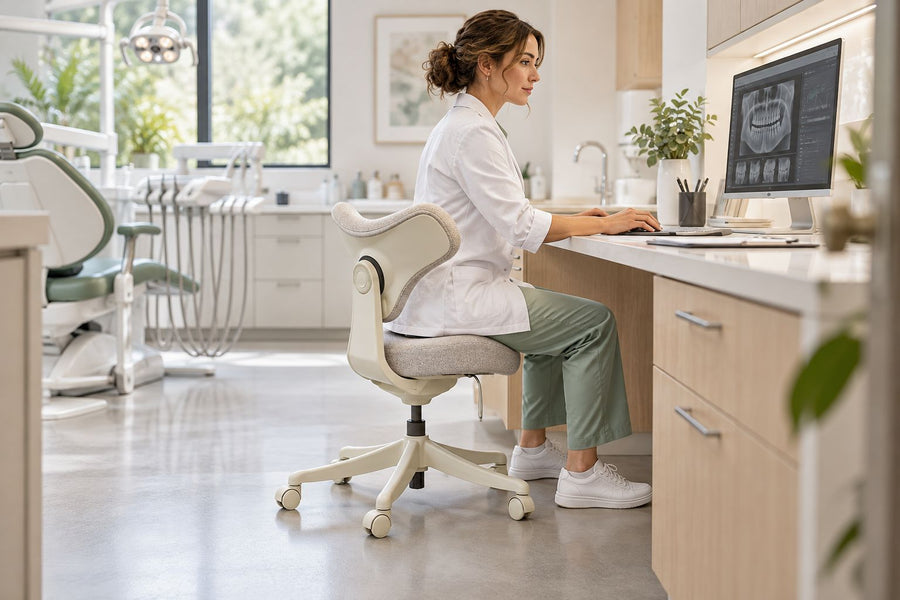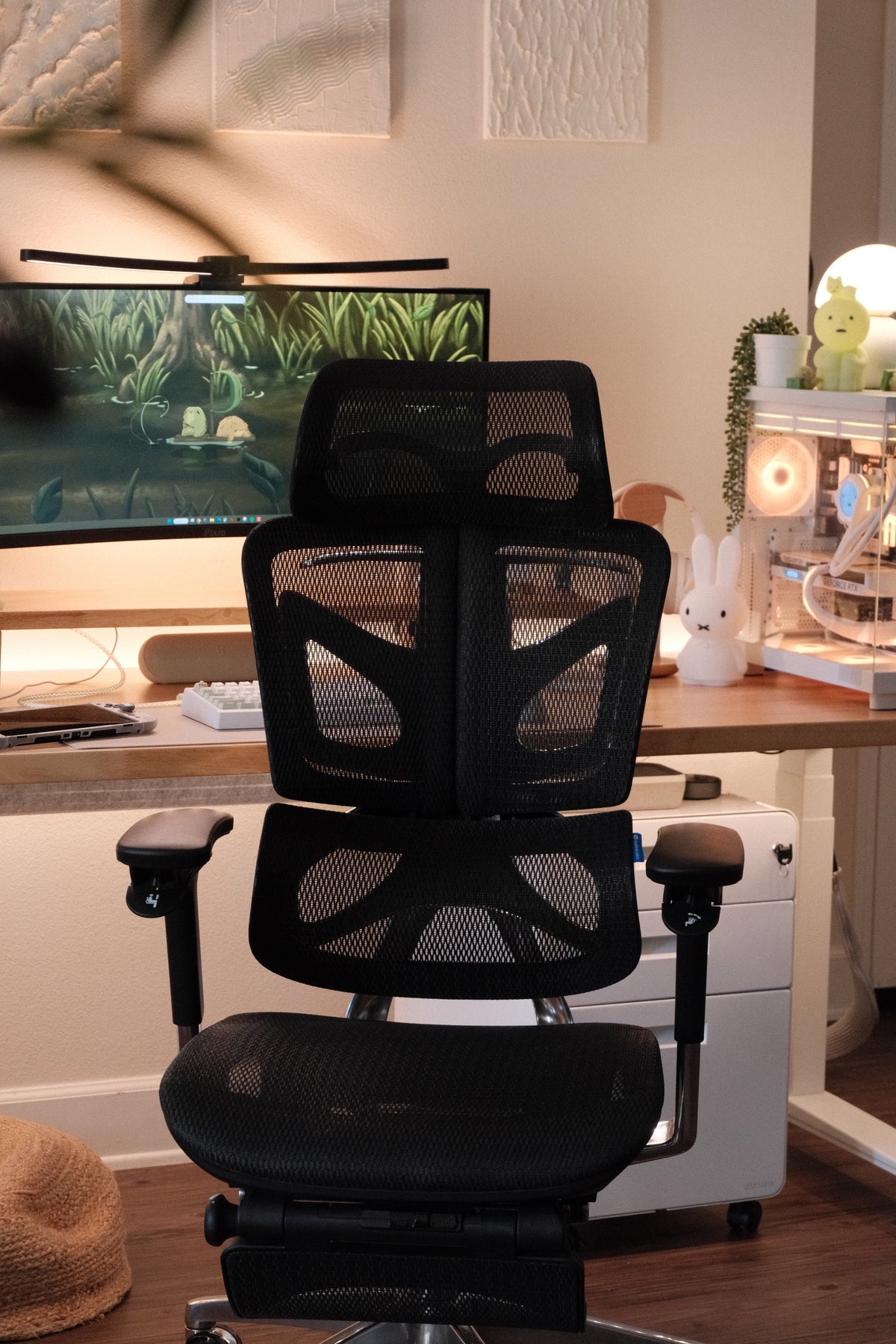
The right ergonomic setup should adapt to your body, support frequent movement, and stay comfortable through a full workday.
An office chair should have armrests only when they support your forearms without lifting your shoulders, pushing your elbows away from your sides, blocking the desk, or getting in the way of the work. If the armrests cannot meet those conditions, a chair with lower, shorter, flip-up, removable, or no armrests may fit better.
That makes the decision less about whether armrests are “ergonomic” in the abstract and more about whether a specific pair fits your body, desk, and tasks. The check below gives you a practical way to decide without treating one chair feature as universally necessary.
The useful armrest is the one you barely notice
Armrests have a simple job: provide a place for part of the forearm to rest while the shoulders remain relaxed and the upper arms stay near the torso. They should not dictate where you sit or force you to reach for the keyboard and mouse.
This is why there is no universal yes-or-no answer. The OSHA computer-workstation guidance treats armrest use as a choice influenced by the work, the user, and personal preference. It also notes that armrests placed too high, low, wide, close, or far forward can create a different problem instead of support.
A good result is quiet and observable: the forearms make light contact, the shoulders do not rise, the elbows do not flare outward, and the chair can still move where it needs to go. If you have to alter the rest of your posture to reach the pads, the pads are not fitting you.
Run the fit check in the order your workstation actually works
Do not judge armrests while standing next to a chair or before setting the seat. Armrest fit depends on where your body lands after the chair, desk, and input devices are arranged for the task. If the rest of the chair has not been set yet, use this office-chair adjustment sequence first, then return to the armrest check.
1. Establish the seated position first
Sit back with your feet supported by the floor or a stable footrest. Set the seat and backrest so you can use the back support without the front of the seat pressing behind the knees. Place the keyboard and mouse where you can reach them without leaning forward.
Only then let your arms hang comfortably at your sides and bend your elbows into the position you use for the task. A right angle can be a useful starting reference, but it is not a target you need to hold rigidly. The work surface, input device, and natural variation in how you sit all affect the final position.
2. Bring the armrests to the forearms—not the shoulders to the armrests
Raise each pad until it just supports the underside of the forearm. Your shoulders should feel the same before and after contact. If they rise, the pads are too high. If you have to lean sideways or drop a shoulder to find support, they are too low or too far away.
Next, look from above. Your upper arms should remain close to your body rather than reaching outward to wide pads. This light-contact approach is consistent with the CCOHS chair-adjustment guidance, which starts with relaxed upper arms and armrests near resting elbow height.
3. Test the desk approach and your real movements

Roll the chair into working position. You should be close enough to the keyboard and mouse that you do not reach or bend forward simply because an armrest meets the desk edge. Then type, use the mouse, reach for a frequently used item, turn to the side, and get in and out of the chair.
The armrests fail this part of the check if they hit the desk before you are close enough, trap you during entry, or interrupt movements you repeat during the day. OSHA identifies the same boundary: armrests that are too large or poorly placed can keep the chair away from the keyboard and lead the user to reach or lean forward.
When armrests earn their space
Armrests are useful when they provide support during pauses and task changes without becoming an obstacle during active work. They are especially worth considering in these situations:
- Keyboard and mouse work: properly positioned pads can give the forearms a place to settle between inputs while keeping the elbows near the body.
- Reading, calls, or light recline: the arms may need a different support position than they do during typing. Pads with fore-aft or pivot adjustment can accommodate the change.
- A shared chair: height and width adjustment give different users a better chance of finding support without changing the whole workstation.
- A desk with generous clearance: shorter or rearward-adjusting pads may support the arms and still let the chair move close to the work surface.
Armrests do not need to carry the forearms continuously. During active typing or mousing, prioritize easy reach and a comfortable wrist position. The pads can support brief rests without pinning the elbows in one place for every task.
When armless is the better working choice
An armless chair is not automatically less ergonomic. It may be the more workable option when fixed armrests force a poor relationship between the chair and the desk.
Consider an armless, flip-up, or removable-arm design when:
- the lowest armrest setting still lifts your shoulders;
- the pads are too wide to reach without moving your elbows away from your sides;
- the chair stops short of the keyboard because the armrests hit the desk;
- your task needs frequent side-to-side arm movement, such as playing an instrument, drawing on a wide surface, or moving between work zones;
- a compact desk or narrow room makes entry and exit awkward;
- you use several working positions and the armrests suit only one of them.
Removing the obstacle does not solve every workstation issue. If an armless setup leaves you reaching up to a high desk or leaning forward for the keyboard, the work-surface relationship still needs attention. The chair, desk, keyboard, mouse, and foot support should be evaluated as one system.
Choose movement range, not a “D” label
Terms such as 2D, 3D, and 4D are shorthand for different adjustment directions, but the label alone does not tell you whether the range will fit. One chair may move low enough and close enough for you; another with the same marketing label may not.
| Armrest design | What it can solve | What to verify |
|---|---|---|
| Fixed | Simple support when the chair, user, and desk already align | Actual height, spacing, length, desk clearance, and entry path |
| Height-adjustable | Shoulder position and forearm contact | That the lowest and highest settings span your resting elbow position |
| Width, depth, or pivot adjustable | Elbow position, pad location, and clearance for different tasks | Usable range, lock or detent stability, and whether the pads stay where you place them |
| Flip-up | Quickly clears the side of the chair or desk approach | Whether the raised arms remain out of the movement path |
| Removable | Converts the chair to an armless setup | Manufacturer approval, model-specific instructions, and whether other functions depend on the armrests |
If possible, measure before buying. Compare the seated elbow height and outside-to-outside elbow spacing with the armrest range, then compare the pad height and length with the desk opening. A product's adjustment count is less useful than knowing whether its endpoints clear your actual constraints.
The desk edge decides more than shoppers expect
Armrests do not have to slide completely under every desk. They do have to let you reach the working zone without leaning or stretching. A short pad can stop before the edge while your torso still comes close enough; a long fixed pad may collide much earlier.
Do not raise the chair solely to lift the armrests over the desktop if doing so leaves the feet unsupported. If the desk is high, adjust the seat for the working height and add appropriate foot support when needed. If the desk is low, verify that both the legs and armrests have clearance rather than squeezing the chair into a space it does not fit.
A keyboard tray can change the equation because the active work surface sits below the desktop. Test the chair against the tray in both its working and stowed positions. The correct armrest position is the one that works with the input surface you actually use, not the decorative top of the desk.
Before removing an armrest, check what else is attached to it

Some armrests are simple bolt-on parts; others are part of a larger control or support system. Do not assume removal is safe because the fasteners are visible. Confirm the exact model in the current manual and check whether the armrest connects to the backrest, seat structure, wiring, or adjustment controls.
For example, the OdinLake O3 product page documents WireControl™ paddle controls embedded in the armrests for chair height and tilt adjustment. That makes “just take the arms off” an inappropriate generic instruction for this model. Use the model-specific OdinLake assembly guide or contact support before disassembly when an armrest carries controls or when the manual does not authorize removal.
Stop if removal would expose a cable, loosen a structural connection, conflict with the manual, or require drilling, cutting, or improvised hardware. In that case, stop using the pads if that is safe and practical, or choose a chair whose approved adjustment range fits the workstation.
Make the decision from the failed condition
The most useful choice is the smallest change that fixes the condition you can observe.
| What you observe | Best next move | Verify afterward |
|---|---|---|
| Light forearm contact, relaxed shoulders, clear desk approach | Keep and use the armrests | Typing, mousing, turning, and entry remain unrestricted |
| Shoulders rise or one side leans | Lower, narrow, or reposition the pads | Shoulder position stays unchanged when contact begins |
| Pads hit the desk before the input devices are within easy reach | Move pads rearward, flip them up, or use shorter/removable arms | You can sit close without leaning forward |
| Fixed pads cannot reach your forearms without compensation | Stop using them or choose an armless/more adjustable design | The replacement does not create a new reach or clearance problem |
| Controls, wires, or structural parts are integrated into the arms | Do not remove them without model-specific authorization | The official manual or support path confirms the action |
Recheck the fit whenever the desk, keyboard tray, chair user, or main task changes. You are not trying to preserve one ideal angle; you are checking whether the chair continues to support the work without creating a new obstacle.
Frequently Asked Questions
Is it better to have an office chair with or without armrests?
Neither is universally better. Armrests are helpful when they lightly support the forearms with relaxed shoulders and do not block the desk or movement. If fixed arms force you to sit too far away, lift your shoulders, or spread your elbows, an armless or clearable design is the better fit.
Where should office chair armrests be positioned?
Start with your upper arms relaxed near your sides, then bring the pads up to make light contact with the underside of the forearms. Adjust width, depth, or pivot so you do not reach outward for support. Confirm the position while performing the actual task, not only while sitting still.
Should office chair armrests go under the desk?
They do not always need to go fully under the desk, but they must not stop you before the keyboard and mouse are within easy reach. A short pad may clear the working zone without sliding under the top. Judge the result by reach, shoulder position, and clearance rather than by whether the pad disappears below the desktop.
Are fixed armrests okay?
Fixed armrests are fine when their height, spacing, length, and desk clearance already fit the user. They become a problem when you must adjust your body or workstation around them. Test the exact chair instead of assuming a fixed design will or will not work.
Can I remove the armrests from my office chair?
Only if the manufacturer identifies them as removable and the current model instructions support the action. Do not remove armrests that carry controls, wiring, or structural connections. When the manual is unclear, contact the manufacturer rather than improvising a disassembly method.
Are flip-up armrests a good compromise?
They can be, especially when you need support for some tasks and an open side or closer desk approach for others. Check the armrests in both positions: lowered pads still need to fit your forearms, and raised pads should remain out of the movement path. A flip-up mechanism does not compensate for a poor lowered height or width.