A real-task method for setting standing desk height, input reach, screen position, foot space, and movement—without forcing one rigid posture.
The right ergonomic setup should adapt to your body, support frequent movement, and stay comfortable through a full workday.
To stand properly at a standing desk, set the keyboard and mouse for relaxed arms and straight wrists first, then place the screen where you can read it without leaning, lifting your chin, or turning your head. Keep frequently used items within easy reach, give your feet a stable surface, and leave enough room to shift position. The result should support the task without making you hold one “perfect” pose.
Use a normal three-to-five-minute computer task to calibrate the setup. If your shoulders rise, your wrists bend, you reach forward, or your head drifts toward the screen, change the workstation—not your determination to stand still. Standing is one usable work position, not an endurance test.
Start With the Task, Not a Posture Photograph
A standing workstation must fit both the person and the work. Typing, detailed mouse work, reading two monitors, and reviewing a paper document do not create exactly the same viewing and reach demands. Before moving the desk, choose the task that occupies most of the next work block and put only its necessary equipment on the desktop.
- Wear the shoes, or use the standing mat, that will normally be present. Either one can change your effective height relative to the desktop.
- Place the keyboard and mouse directly in front of the working position. If you use a separate number pad, drawing tablet, or document holder, include it only if the test task needs it.
- Stand on a stable, level area with room to move. Let your arms hang for a moment and let your shoulders settle instead of pulling them down deliberately.
- Do the task normally. Do not brace your abdomen, lock your knees, pin your elbows to your sides, or force equal weight through both feet.
The Canadian Centre for Occupational Health and Safety guidance for standing work emphasizes fitting the work surface to the person and task, providing room to move, and allowing a variety of balanced positions. That is a more useful standard than copying the apparent angles in a staged image.
Set the Input Surface Before You Move the Screen
Keyboard and mouse position directly affects the shoulders, elbows, forearms, and wrists. Use standing elbow height as a starting reference, not a factory number that every user must match.
- Stand close enough to the desk that your upper arms can remain near your sides.
- Raise or lower the desk until you can use the keyboard with relaxed shoulders, elbows near the body, and forearms roughly level.
- Keep the wrists in line with the forearms rather than bent noticeably upward, downward, or toward either side.
- Place the mouse beside the keyboard at the same usable level. Remove the empty gap that makes the arm reach outward.
- Type and mouse for several minutes. Keep the setting only if both devices remain usable without raised shoulders, wrist bending, or forward leaning.
The OSHA computer-workstation keyboard guidance uses the same observable checks: shoulders relaxed, elbows close to the body, wrists straight and in line with the forearms, and input devices close enough to avoid reaching. An elbow angle near 90 degrees may be a convenient starting point, but it is not a pass-or-fail measurement. Body proportions, device thickness, task, and comfort can require a nearby setting.
If the desk cannot move low or high enough, stop trying to correct the mismatch by shrugging, bending the wrists, or widening the stance. A compatible keyboard tray, a different work surface, or a desk with a suitable adjustment range is a workstation decision. OdinLake’s guide to the best height for a standing desk covers the measurement and range question in more detail.
Let Reach Decide What Stays on the Desktop
A correct desk height will not help if the work keeps pulling you away from it. Arrange the primary devices first and make secondary items earn their place.
- Keep the keyboard centered on the main typing area, not automatically centered on the full width of a keyboard with a number pad.
- Put the mouse next to the keyboard on the side you use. Increase pointer speed or consider a more compact keyboard only if those changes suit your control needs.
- Move a phone, notebook, or reference document into an easy-reach zone during the task, then move it back when the task changes.
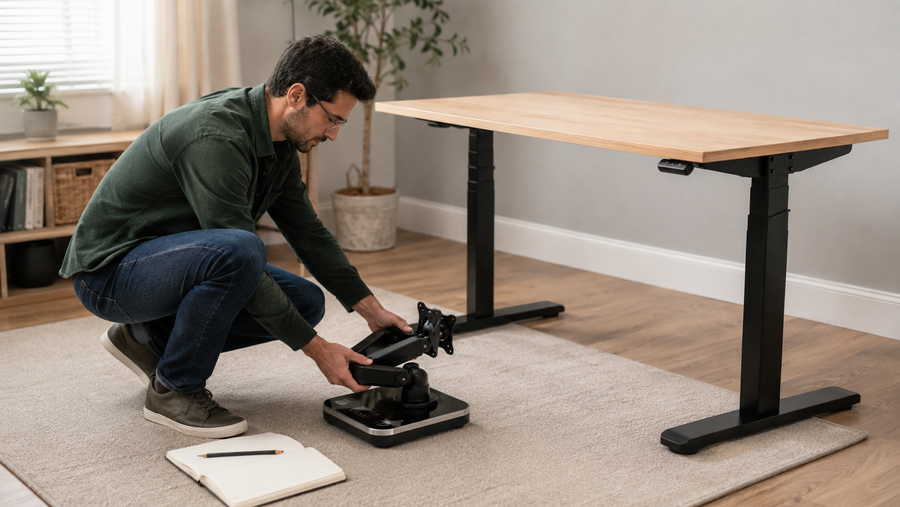
- Route cables with enough slack for the desk’s full permitted travel, but keep loops, power equipment, and accessories out of the leg and foot area.
- Do not store objects where they make you stand farther from the desk or twist repeatedly to reach them.
If you work from a laptop, raising the laptop screen usually makes its attached keyboard too high or too far away. For sustained desk work, a separate keyboard and pointing device let you adjust the input surface and screen independently. For a short task, the best compromise is the one that avoids an obvious, repeated reach or bend; it does not turn a physically linked laptop screen and keyboard into two independently adjustable components.
Move the Screen to Your Eyes, Not Your Body to the Screen
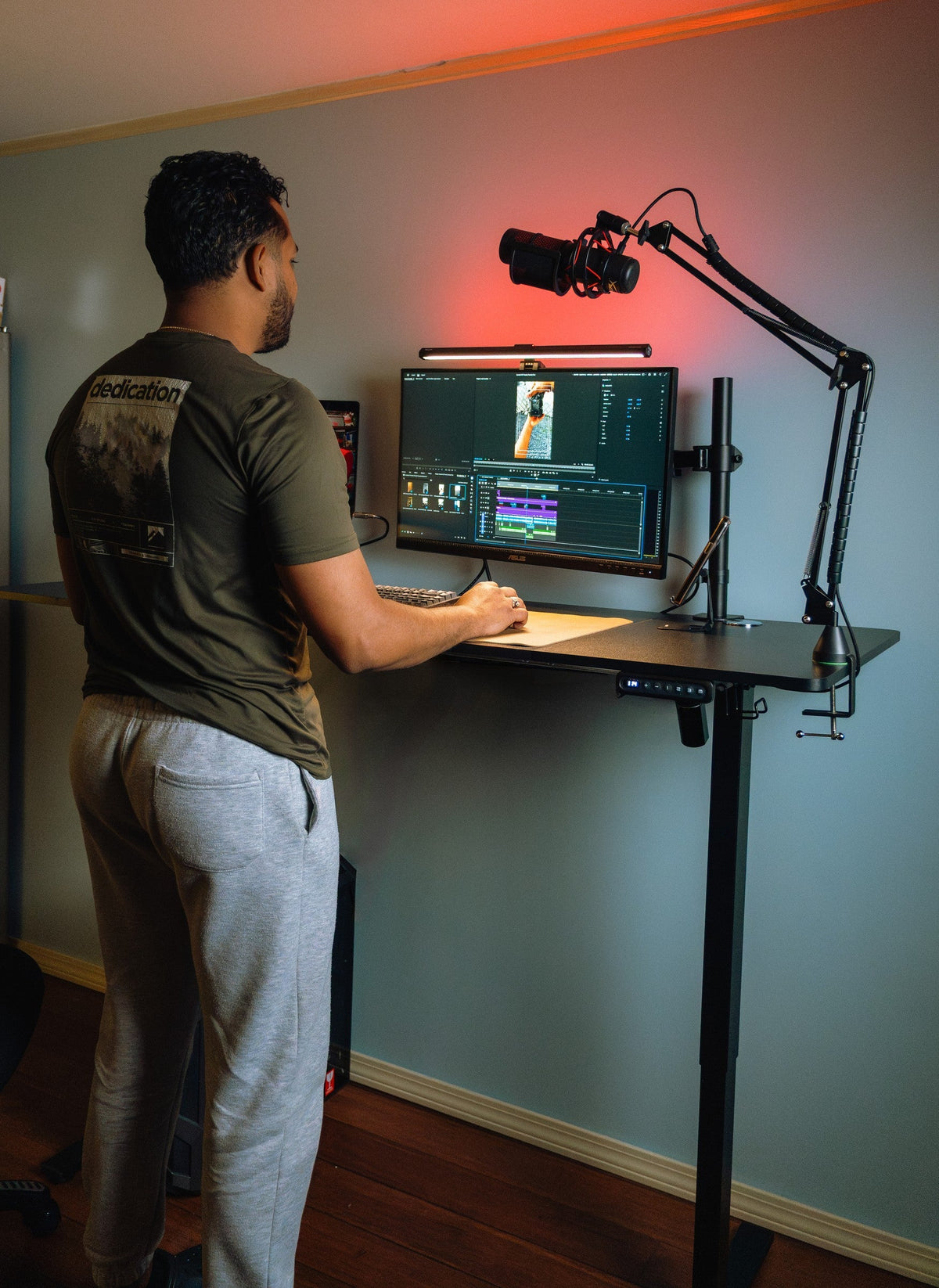
Adjust the screen only after the input position works. Put the primary monitor directly in front of the working position. As a general starting point, place its top at or slightly below eye level and keep the screen far enough away to view comfortably without leaning forward.
OSHA’s monitor guidance gives a typical viewing distance of 20 to 40 inches (about 50 to 100 cm), while also telling users to adjust text size and monitor position for comfortable viewing. Use that range as a checkpoint, not a command to keep text too small or the screen too far away.
- If you lean toward the screen, enlarge text before moving the screen much closer. Then retest your normal task.
- If you lift your chin to read the top of the display, lower the monitor. Users of bifocals or progressive lenses may need the screen lower than a generic eye-level rule suggests.
- If you look down sharply for most of the task, raise the display within its stable adjustment range.
- If two monitors are used equally, place them close together and center the pair. If one is primary, keep it in front and place the secondary display beside it.
- If repeated work requires looking far to one side, move the content or display instead of accepting a sustained head turn.
Stop adjusting when normal reading no longer pulls the head toward the screen and the input setup still works. A screen position is not successful if it fixes viewing by making the keyboard or mouse harder to reach.
Build a Standing Area That Allows Movement
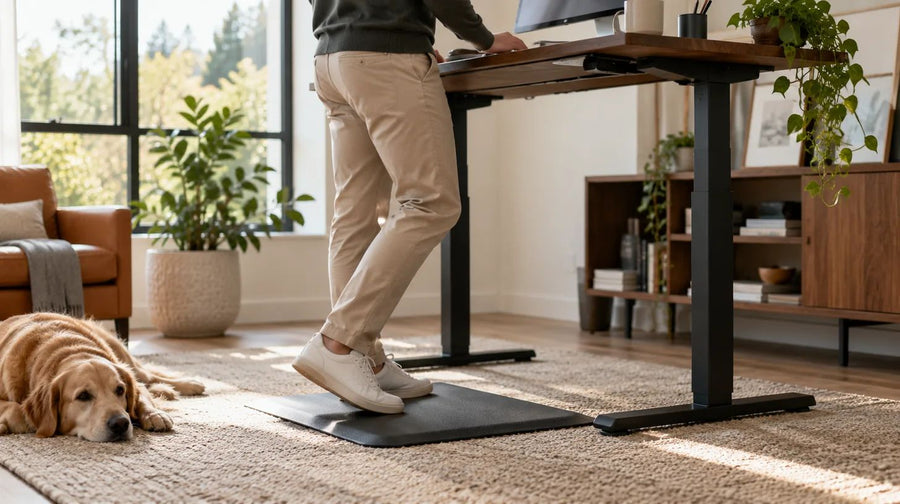
A usable standing position does not require the feet to remain parallel and symmetrical. You may shift weight, change the distance between your feet, place one foot on a stable footrest, or take a short walk. What matters is that the floor and equipment allow those changes without creating a trip or stability problem.
The CCOHS sit/stand desk guidance recommends supportive footwear, a suitable mat where appropriate, a footrest for changing weight distribution, and a layout in which cables and equipment do not interfere with movement. These are options, not compulsory purchases.
- Floor: Use a stable, level, non-slip area. Remove loose objects from the path between standing and sitting positions.
- Footwear: Choose shoes that feel stable and comfortable for the floor and the time spent standing. Replace a vague “best standing shoe” rule with a real-work trial.
- Mat: Consider an anti-fatigue mat when the floor is hard and static standing is uncomfortable. It should lie flat, stay located, and not obstruct the chair, desk base, or walking path.
- Footrest: A stable low foot support can provide another position. It should not tip, slide, or force you to lean on the desktop.
- Chair: Keep the return to sitting unobstructed. The setup has failed if changing position requires moving a tangle of cables or lifting a mat every time.
Do not lock the knees on purpose, but do not replace that with a command to hold a continuous “soft bend,” either. The safer practical objective is freedom to vary position without losing control of the task.
Run a Normal-Work Drift Check
Posture often changes after the first minute. Work normally for three to five minutes, then use the table below to turn what you observe into one reversible test. Change one variable at a time so you can tell what helped.
| What you notice during the task | First variable to check | First reversible test |
|---|---|---|
| Shoulders rise while typing | Input surface may be too high | Lower the desk slightly and repeat the same typing task |
| Wrists bend upward at the keyboard | Desk or device may be too high or steep | Lower the surface or flatten an adjustable keyboard angle, then retest |
| You reach or lean forward to mouse | Mouse is outside the easy-reach area | Move it directly beside the keyboard and remove the intervening gap |
| Your head moves toward the screen | Text size, viewing distance, glare, or vision correction | Increase text size and address glare before moving the display closer |
| Your chin lifts or head stays turned | Screen height or horizontal position | Lower or recenter the primary display |
| You keep leaning on one arm | Task duration, reach, or lack of position options | Move the task closer, change position, sit, or walk briefly; do not force symmetry |
| A cable tugs when the desk moves | Cable length or routing | Stop desk travel and correct the route with the power disconnected only as the equipment instructions permit |
| Accuracy declines or discomfort builds | The current position is no longer serving the task | Change position or sit instead of treating the feeling as a target to push through |
Keep a change only when it improves the observed problem without creating a new one. If lowering the desk relaxes the shoulders but makes the wrists bend downward, return to the prior setting and look at device thickness, keyboard angle, or an alternative input arrangement. The goal is a workable combination, not a single isolated body angle.
Make Standing a Position You Can Leave
Neither sitting nor standing needs to be held continuously. CCOHS recommends alternating positions as needed and taking breaks away from computer work. The OSHA computer-workstation evaluation checklist likewise asks whether tasks allow posture changes, short breaks, and alternation between sitting and standing. The practical aim is to provide movement options instead of designing work around static standing.
There is no universal standing interval that proves the workstation is correct. Task demands, individual tolerance, prior activity, and the rest of the workday all matter. Change position before the setup makes you brace, lean, or lose concentration. For a fuller treatment of progression and scheduling, use OdinLake’s guide to how long to stand at a standing desk.
Save a desk-height preset only after the normal-work test succeeds, and label it for the actual user if the desk is shared. A preset is a repeatable starting point, not proof that the same height suits different shoes, mats, devices, or people. Before every desk movement, confirm that the chair, storage, cables, people, and pets are clear of the travel path.
Know When Setup Is Not the Whole Answer
A fixed-height surface, a monitor without enough adjustment, a keyboard platform that is too thick, or a shared station with insufficient range may prevent a good standing setup. Do not compensate indefinitely with raised shoulders, bent wrists, a wide stance, or a forward lean. Compare equipment by the adjustment range the actual user and task require. OdinLake’s standing desk collection can be used to review desk dimensions and adjustment specifications rather than assuming that one size fits everyone.
Stop using powered height adjustment if the desk moves unexpectedly, produces a new abnormal sound, binds, becomes unstable, or traps or stretches a cable. Follow the current model manual and manufacturer support path; do not reach into a moving mechanism, bypass a safety feature, or improvise an electrical repair.
This article provides general workstation guidance, not medical diagnosis or treatment. If standing is associated with sudden, severe, persistent, or worsening pain, weakness, numbness, dizziness, balance difficulty, or symptoms related to an injury or health condition, stop the test and seek an appropriate health professional or occupational ergonomics assessment.
Frequently Asked Questions
How high should a standing desk be?
Start with the keyboard near standing elbow height, then refine the setting while typing and mousing. Keep the shoulders relaxed, elbows near the body, and wrists in line with the forearms. Your working result is more useful than a chart based only on total body height because body proportions, shoes, mats, and device thickness vary.
Should my elbows be at exactly 90 degrees?
No. An elbow angle near 90 degrees is a practical starting reference, not a required measurement. The more important checks are that the shoulders remain relaxed, the upper arms stay near the body, the forearms can reach the input devices comfortably, and the wrists do not bend noticeably during the task.
Where should the monitor be when I stand?
Place the primary screen directly in front of you with the top at or slightly below eye level, then adjust viewing distance and text size so you do not lean or lift your chin. Bifocal or progressive-lens users may need a lower display. With two screens, center the one used most or center the pair if use is equal.
Should I stand at my desk all day?
No. A sit-stand desk is valuable because it makes position changes easier; it does not turn continuous standing into a requirement. Alternate standing with sitting, walking, and other task changes according to the work and your response. A position that was useful earlier can stop being useful later.
Do I need an anti-fatigue mat?
Not always. A suitable mat can be useful on a hard floor when standing feels uncomfortable, but it must stay flat and stable and must not obstruct desk travel, the chair, or the walking path. Footwear, movement options, task length, and floor condition also affect the result.
Is it okay to lean on a standing desk?
Briefly changing support is not automatically a problem, but repeated or sustained leaning can be a useful signal. Check whether the task is too far away, the desk height is mismatched, the current standing interval has run its course, or you need another position. Do not rely on a desktop or accessory that is not designed to bear that load.