A material-aware six-zone method for cleaning a standing desk, protecting its electrical controls and lifting columns, and checking safe movement afterward.
The right ergonomic setup should adapt to your body, support frequent movement, and stay comfortable through a full workday.
Clean a standing desk in this order: identify the desktop finish, clear and dry-dust the work surface, disconnect electrical power, wipe the top with a material-compatible cleaner applied to a cloth, clean the frame and lifting columns, then reconnect the desk and run one slow movement test. The important difference from cleaning a fixed desk is that liquid must stay away from the handset, control box, cable connections, and gaps between moving column sections.
If your model manual gives different care instructions, follow the manual. A cleaner that is safe for one laminate, coating, or wood finish may mark another, so start with the least aggressive method and spot-test in a hidden area.
Clean Each Surface and Component by Its Risk
A single wipe-down misses the parts that make a height-adjustable desk different. Divide the desk into six zones and give each one a separate pass.
| Zone | What to remove | Main precaution | Finished signal |
|---|---|---|---|
| Desktop | Dust, crumbs, rings, fresh spills | Match cleaner to the documented finish | Dry surface with no cleaner residue |
| Edges and seams | Debris along trim, panel gaps, and grommets | Do not push liquid into a seam | Clean edge with no trapped moisture |
| Handset | Fingerprints and surface dust | Apply cleaner to the cloth, never the control | Buttons and display are dry |
| Frame and feet | Dust, shoe marks, loose surface dirt | Use a soft, nonabrasive cloth | Painted surfaces are dry and unmarked |
| Lifting columns | Dust on exposed outer sections | Do not force debris or cleaner into column gaps | Exposed sections are clean and undamaged |
| Cables and control box | Loose dust around accessible exterior surfaces | Keep connectors and openings dry | Cables remain secure, dry, and unobstructed |
This map is the article's main decision tool: if a cloth would cross from a wet zone to an electrical or moving zone, stop and change to a clean, nearly dry cloth.
Prepare the Desk Before Any Wet Cleaning
- Check the exact desk instructions. Confirm the desktop material or finish and read its care guidance. If the material is unknown, limit the first pass to a dry microfiber cloth until the manufacturer confirms a compatible cleaner.
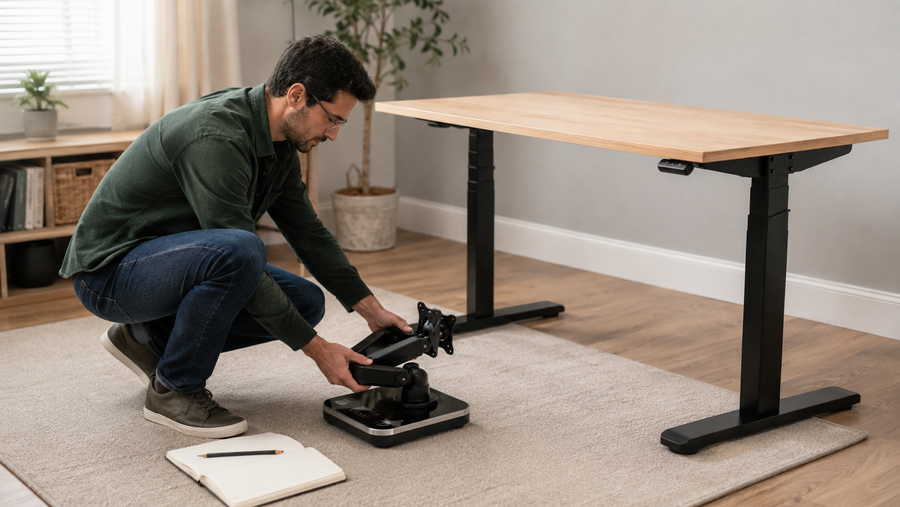
- Clear the travel area. Remove cups, loose objects, and anything above or below the desk that could interfere with movement. Photograph the setup first if it will help you restore monitor, accessory, and cable positions.
- Raise the desk only if the manual permits it. A higher position can expose the outside faces of telescoping columns. Keep hands and objects away from pinch areas while the desk moves.
- Disconnect power. Unplug the standing desk before maintenance or cleaning. Disconnect powered accessories separately when their manufacturers require it.
- Dry-dust first. Use a clean microfiber cloth or a soft brush attachment without pressing against controls, connectors, or moving gaps. Removing grit first reduces the chance of scratching during the damp pass.
Stop before cleaning if you see a cut or crushed cord, a loose connector, liquid inside an electrical opening, a cracked or bent structural part, smoke, a burning smell, or repeated electrical tripping. Leave the desk disconnected and contact the manufacturer or qualified support; cleaning is not a repair.
Clean the Desktop by Material, Not by Stain Alone
The safest cleaner is the one approved for the exact finish. For ordinary soil on many finished or laminate work surfaces, a soft cloth lightly dampened with water may be enough. When the manual allows it, use a small amount of mild soap or a compatible nonabrasive cleaner, then remove residue and dry the surface promptly.
Laminate or coated desktop
- Apply water or the approved diluted cleaner to the cloth rather than the desk.
- Wipe a small hidden area and let it dry.
- If the color, gloss, or texture is unchanged, work in small sections.
- Use a second damp cloth to remove soap residue when necessary, then dry immediately.
OdinLake's current S450 product record describes its MDF desktop as easy to clean, but that does not establish one cleaner for every OdinLake standing desk. Use the instructions for your model and finish. The same caution applies to disinfectant wipes: a wipe labeled for a hard surface is not automatically compatible with every furniture coating.
Finished wood or wood veneer
Dust with a dry or barely damp cloth and wipe with the grain. Dry the surface right away. Do not treat an unknown wood-look top as solid wood, and do not apply polish, oil, wax, alcohol, or a stain remover unless the finish manufacturer specifically permits it.
Fresh spill
Disconnect power if liquid is close to the handset, a grommet, cable opening, power accessory, or underside electronics. Blot the spill instead of spreading it across seams. If liquid entered an electrical component or you cannot confirm the area is dry, keep the desk disconnected and contact support.
Clean the Handset, Frame, and Lifting Columns
Handset and other electrical components
With power disconnected, wipe the outside gently using a cloth that is only as damp as the component's instructions allow. Do not spray the handset, power strip, control box, or connectors. Apply any permitted cleaner to the cloth rather than the electrical component, keep liquid out of openings, and do not reconnect power until the surrounding area is dry.
Painted frame and feet
Wipe with a soft damp cloth. For compatible painted metal, a pH-neutral or mild cleaner is a conservative starting point when the manual permits it. Avoid abrasive pads, steel wool, aggressive scrubbing, and highly acidic or alkaline products that can mar the finish. Dry the frame and the area around fasteners afterward.
Telescoping lifting columns
Clean only accessible exterior faces and inspect the columns and cables while they are visible. Do not insert a tool or cloth into the space between column stages, open the column, or add lubricant unless the exact desk manual instructs you to use a specified product in a specified place. A generic lubricant can attract dirt or conflict with a factory-maintained mechanism.
Inspect the Under-Desk Area While It Is Clear
Cleaning creates a useful inspection window. Look without opening or modifying components:
- Confirm every plug remains fully seated and its cable insulation is intact.
- Check that cables do not cross a lifting column, sharp edge, pinch gap, or moving frame member.
- Remove loose dust from the exterior of the cable tray and control-box area with a dry cloth.
- Check whether spilled liquid traveled through a desktop seam or grommet toward electronics.
- Leave structural fasteners and electrical connections alone unless the model manual assigns that maintenance task to the user.
If the under-desk route needs rebuilding, document the cable path before removing ties or accessories. Keep enough slack for the full height range, and compare the setup with the cable-management instructions for your exact desk rather than copying another model.
Reconnect and Check the Desk’s Movement
Wait until every cleaned surface, control, plug, and nearby floor area is dry. Restore equipment gradually, reconnect the desk, and test three positions rather than pressing a memory preset and walking away.
- Start low. Check the floor, wall, chair, drawers, cables, and underside for clearance.
- Pause near working height. Watch the power cord and every cable connected to a fixed endpoint. Nothing should tighten, snag, scrape, or pull a plug.
- Stop before the upper limit if anything changes. If the desk moves unevenly, makes a new mechanical or electrical noise, shows an error, or pulls a cable, stop and use the exact manual or support path.
A clean desk has passed only when it is dry, cables are secure, the travel path is clear, and one observed lift cycle completes without strain or a new symptom.
Use a Condition-Based Cleaning Rhythm
There is no reliable universal schedule for every room and finish. Clean when the desk shows a condition that calls for it:
- Immediately: blot a spill and isolate power if liquid approaches electrical parts.
- As visible: remove crumbs, rings, sticky marks, and dust on controls or columns.
- When equipment changes: clean under monitor bases, desk mats, cable trays, clamps, and accessories before reinstalling them.
- In a shared workspace: follow the workplace cleaning plan and the surface/cleaner instructions instead of assuming that frequent disinfecting is safe for the finish.
For material-specific marks or a finish not covered by the manual, test the mildest permitted method or ask OdinLake customer support. To compare current desk models and their documented surfaces and controls, visit the OdinLake standing desk collection. After cleaning, use the remote-work setup guide to restore monitor, input-device, and movement clearances without rebuilding clutter.
Frequently Asked Questions
Can I use disinfectant wipes on a standing desk?
Only if the wipe and the desk manufacturer both allow it for that exact surface. Spot-test first, follow the cleaner's dilution or contact-time directions, and dry the surface as instructed. Do not use a wet wipe over openings, connectors, or an energized handset.
Should I unplug an electric standing desk before cleaning it?
Yes, when the model instructions call for disconnection during maintenance or cleaning. Reconnect only after every nearby surface is dry, plugs and cables have been inspected, and no cloth or object remains in the travel path.
How do I clean the legs of a standing desk?
Use a soft, lightly damp cloth on accessible exterior surfaces, with a pH-neutral or model-approved cleaner when needed. Remove dust from exposed lifting-column faces without pushing cloth or liquid into the gaps between stages. Stop if you find a dent, scrape that affects movement, damaged cable, or loose structural part.
Can I spray cleaner directly on the desk control panel?
No. Disconnect power, apply the compatible cleaner to a cloth, and wipe the control gently. Direct spray can enter button gaps, seams, or electrical openings.
Should I lubricate standing desk lifting columns after cleaning?
Not unless the exact desk manual specifies the lubricant, location, amount, and interval. Do not open a lifting column or improvise with household oil or spray. New noise, uneven movement, or resistance belongs in model-specific troubleshooting or support, not a general cleaning routine.
How often should I clean a standing desk?
Use visible soil, spills, shared use, and the manufacturer's care schedule as your triggers. Wipe fresh spills promptly and remove dust or debris before it builds around controls and columns. A fixed weekly or monthly deep-cleaning rule is unnecessary unless the manual or workplace plan requires it.
What should I do if liquid gets inside the standing desk handset or control box?
Disconnect power if it is safe to reach the plug, and do not operate, open, or test the wet component. Keep people away from the moving desk and contact the manufacturer or qualified support. Smoke, a burning smell, heat, or repeated tripping requires immediate electrical escalation.