A controller-aware method for choosing, saving, recalling, and verifying standing desk height presets without assuming one universal button sequence.
The right ergonomic setup should adapt to your body, support frequent movement, and stay comfortable through a full workday.
To set a standing desk preset, first move the desk to a height that fits the task, then use the save sequence printed in the manual for that exact handset. On a common keypad with an M or S key and numbered buttons, the sequence is often: adjust the height, press the memory key, then press the number you want to store. However, button order, hold time, confirmation signals, and recall behavior vary by controller, so do not treat one brand’s sequence as universal.
A preset is useful only after you verify two things: the saved height fits you with the equipment currently on the desk, and the desk can travel to that height without striking a shelf, chair, cable, window ledge, or person. The method below separates height selection from keypad programming so a successful button sequence does not preserve a poor or unsafe setup.
Confirm That Your Handset Supports Memory Presets
Look at the controller before trying random button combinations. A preset-capable handset normally has a height display plus numbered memory positions, or a labeled memory control such as M, S, or Set. Some paddle controllers use a menu instead of visible number keys. A controller with only up and down buttons may not support stored heights.
Record the desk model, handset appearance, and any controller label. Then find the current manual from the desk manufacturer. OdinLake’s public assembly and product guide page currently lists the S450 desk guide; for an OdinLake desk or handset not documented there, use OdinLake support rather than borrowing a sequence from a similar-looking controller.
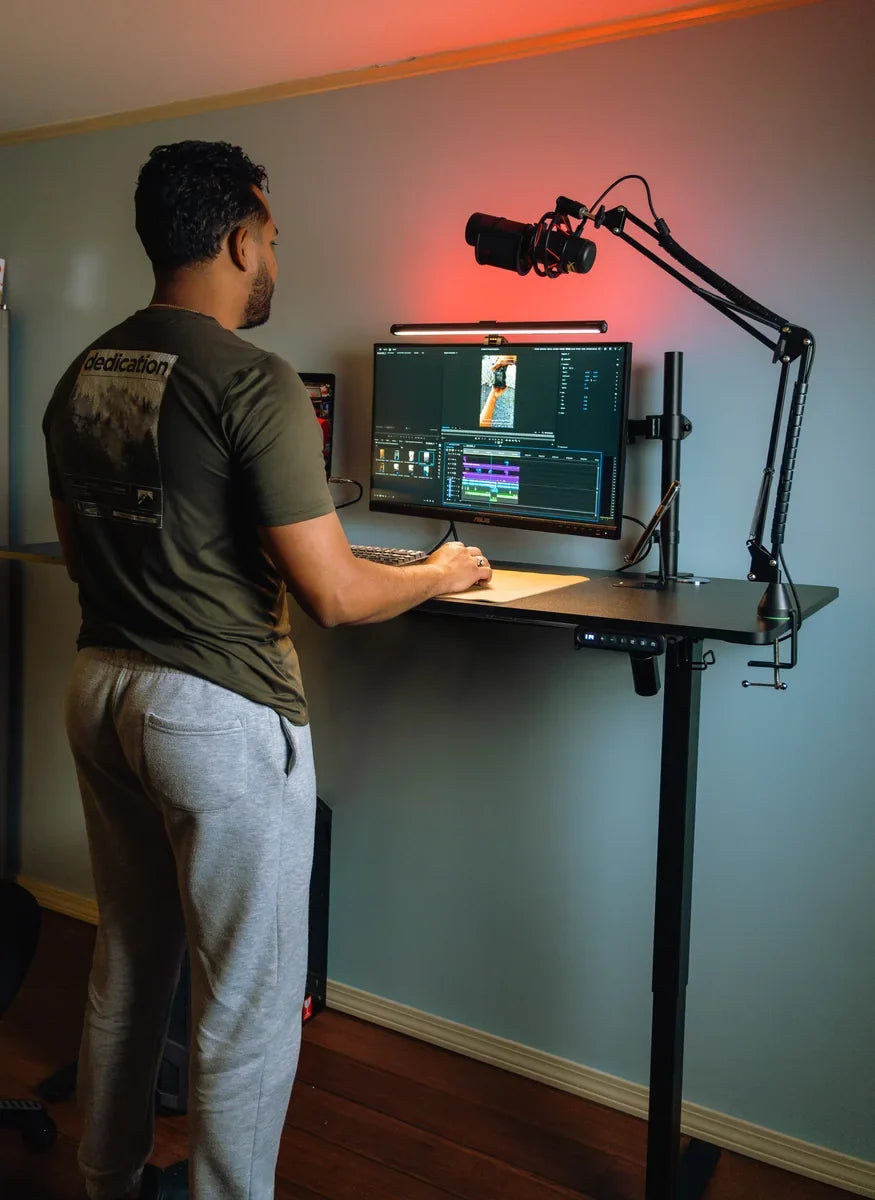
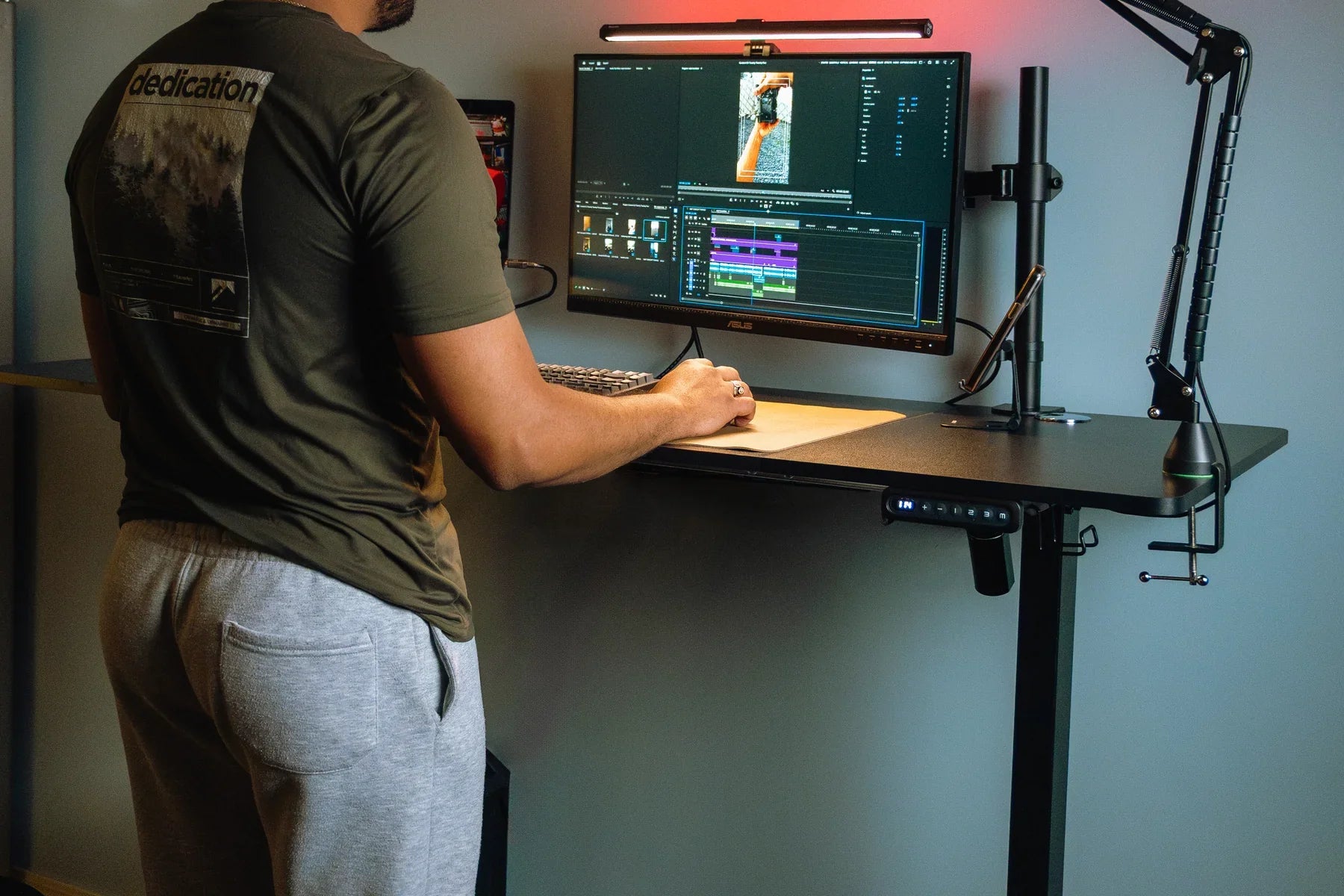
Workspace photography confirms that at least one OdinLake S2 configuration uses a digital handset with up/down controls, three numbered positions, and an M button. That visual establishes the control layout only. Because the current public S2 product page does not publish the programming sequence, use the exact guide supplied with the desk—or obtain it from support—before storing or changing a preset.
Clear the Desk’s Full Travel Path First
Check the area above, below, beside, and behind the desktop before moving it. Include monitor arms, shelves, window trim, drawers, chairs, pet beds, storage, and every connected cable. A cable that reaches the wall outlet at sitting height may become taut at standing height.
Do this with the equipment you normally use in place. Move the desk slowly through the intended range while watching the entire workstation. Stop if:
- a power or signal cable tightens, snags, or pulls a device;
- the desktop or mounted equipment approaches an obstruction;
- the legs do not move evenly;
- the handset shows an error or reset message; or
- you hear grinding, see structural movement, or smell heat or burning.
Do not save a preset until the route is clear. A stored height is a destination, not proof that the travel path is safe.
Find the Sitting Height From the Task
Set the chair first. Sit with the back and feet supported in a position you can use comfortably, then bring the desk to the chair instead of changing a workable chair setting just to meet the desktop.
- Center the keyboard and pointing device in front of you.
- Move the desktop until your shoulders can remain relaxed, your upper arms stay near your sides, and your forearms approach the work surface without sharply bending the wrists.
- Check that the desk edge does not press into the forearms and that your thighs, knees, chair arms, and any chair controls have clearance.
- Place the monitor directly ahead at a distance and height that do not require repeated reaching or head tilting.
- Type and use the pointer for a short real-task check. Fine-tune the desk by small increments if contact, reach, or sight line changes.
The numerical display is a repeatable reference for this workstation, not a universal prescription. Shoes, keyboard thickness, chair setup, desktop thickness, and the task can change the correct surface height. OSHA’s computer workstation guidance uses observable conditions—relaxed shoulders, elbows close to the body, straight forearms and wrists, and supported feet—rather than one height for everyone.
Find the Standing Height Separately
Stand in the position where you will actually work, with the same footwear and input devices you normally use. Raise the desk until the keyboard and pointer allow the shoulders to stay relaxed and the elbows to remain near the body. Check the monitor again; changing desktop height does not guarantee a useful viewing height.
Complete the same three-part task test:
- Contact: the desktop edge does not press into the forearms or force the wrists upward.
- Reach: the keyboard, pointer, and frequently used items remain within easy reach.
- Sight line: the primary screen is in front of you without repeated head tilt.
OSHA notes that workstations should accommodate different working postures and that even a comfortable posture should not be held for prolonged periods. A standing preset is therefore a repeatable work position, not a recommendation to stand all day.
Save the Height Using the Exact Controller Sequence

Once the desired height and travel path pass the checks, follow the model guide. Use this controller-family map to identify the kind of instruction you need—not as a substitute for that instruction:
| Visible controller layout | Common save pattern | What must be verified |
|---|---|---|
| Up/down, M or S, and numbered keys | Move to height, press memory key, then choose a number | Whether to tap or hold each key and what confirms the save |
| Up/down and numbered keys, no separate memory key | A numbered key may be held to store the current height | Required hold time and whether a tone or display change confirms it |
| Paddle or menu controller | Open the memory menu and assign the current height to a slot | Menu navigation and one-touch or constant-touch behavior |
| Up/down controls only | Presets may not be available | Exact handset capabilities before attempting hidden combinations |
Published controller instructions demonstrate why this distinction matters: some handsets save with a memory key followed by a number, while others use a long press, and recall may require a hold or a second press. Similar-looking controls do not justify assuming identical operation. Confirm the exact handset and model before programming or troubleshooting.
After the controller gives its documented confirmation, move the desk away from the saved position manually. Do not assume a beep, flash, or displayed number has the same meaning on another handset.
Run a Save–Move–Recall Verification

Verify each preset before depending on it:
- Save: store the checked height in the chosen slot using the exact manual.
- Move: use the arrows to place the desk several inches away from that height.
- Clear: confirm again that no person, chair, cable, or object is in the travel path.
- Recall: use the documented tap, double-press, or press-and-hold action for that handset.
- Compare: confirm the display returns to the saved value and repeat the contact, reach, and sight-line task check.
Stay with the desk while it moves. If the controller requires constant pressure, releasing the button early may be the intended stop action. Do not change the controller to one-touch mode unless the current manufacturer guide explicitly supports that setting.
Assign Preset Slots by Job, Not by Number
A simple two-slot setup is enough for many people: one verified sitting height and one verified standing height. Additional slots should solve a different repeatable task rather than hold arbitrary variations.
| Preset job | When it deserves its own slot | Recheck before saving |
|---|---|---|
| Seated keyboard work | Your chair and input-device arrangement are stable | Feet and back support, thigh clearance, forearm contact, keyboard reach |
| Standing keyboard work | You perform computer tasks while standing | Footwear, shoulder position, wrist position, monitor sight line |
| Shared-user position | A second person repeatedly uses the same equipment layout | That person’s chair, reach, clearance, and viewing position |
| Different task position | Writing, drawing, video calls, or another real task needs a different setup | The exact tools and mounted equipment used for that task |
Keep a small private note of each slot’s job and displayed height until the choices become familiar. Do not attach a label where it blocks the display or controls.
If the Preset Does Not Save or Recall
Use non-destructive checks first. Do not open the handset, control box, lifting columns, motor, or power supply.
| Symptom | Check next | Stop or support condition |
|---|---|---|
| The number key only nudges the desk | Verify whether the height was actually saved and whether recall requires holding or double-pressing | Do not guess at hidden controller modes |
| The preset stops when you release the key | The handset may be configured for constant-touch operation | Use the documented behavior; do not force one-touch operation |
| The display shows LOC or buttons do not respond | Use the exact manual’s unlock procedure | Do not apply another brand’s key combination |
| The display shows ASr, RST, or an error code | Photograph the code and follow the exact model’s reset or troubleshooting guide | Use the separate reset process; do not keep programming presets |
| The desk moves unevenly or the saved height drifts | Stop movement and check the official support path | Disconnect power if directed and contact support; do not open electrical or lifting components |
If the problem is a reset message or failed calibration rather than memory programming, photograph the display and follow the current model’s reset instructions from its manual or support team. Contact support immediately for exposed wiring, damaged plugs, liquid inside an electrical component, burning odor, unusual heat, structural cracking, or repeated unequal leg movement.
Recheck Presets When the Workstation Changes
Reprogram a height after changing the chair, keyboard or tray, monitor mount, desktop thickness, footwear used while standing, anti-fatigue mat, or primary task. Also rerun the full travel-path test whenever you reroute cables or move the desk near furniture.
The current OdinLake S2 product page lists a height range of 27.95 to 45.67 inches for the configuration shown there, but a product range does not establish that any saved height fits a particular person or task. Confirm the exact variant and use the contact–reach–sight-line checks at the actual workstation. The standing desk height guide explains how to verify those checkpoints before saving a preset.
Frequently Asked Questions
How do I set the memory on a standing desk?
Move the desktop to a verified working height, then follow the exact handset manual. A common layout uses the sequence “adjust height, press M or S, press a numbered slot,” but some controllers require a hold, use a menu, or save directly through a number key.
Why is my standing desk preset not working?
The height may not have been saved, recall may require holding or double-pressing, the handset may be locked, or the desk may need model-specific reset troubleshooting. Check the display, record any code, and use the current manual instead of trying combinations from another desk.
Do I press or hold a standing desk preset button?
It depends on the controller. Some use constant-touch, some use a double press for automatic travel, and others offer a configurable mode. The manual should identify both the correct recall action and how releasing the control stops movement.
Can I overwrite a standing desk preset?
Many controllers let you store a new height in an occupied slot by repeating the save sequence, but this is model-specific. Confirm the overwrite procedure and its success signal in the current handset guide.
What heights should I save for sitting and standing?
Save the heights that pass a real task check at your workstation: supported sitting or stable standing, relaxed shoulders, elbows near the body, usable wrist position, comfortable reach, sufficient clearance, and a monitor sight line that does not require repeated head tilt. Do not select a preset from height alone.
Do standing desk presets remain after a power outage?
Memory retention varies by control system. Some retain stored positions and others may require verification or reprogramming after power loss or reset. Test each preset after power is restored and consult the model guide before relying on it.
Why does my preset stop as soon as I release the button?
The handset may be using constant-touch recall by design. Continue holding only if the current manual says to, keep the path clear, and remain with the moving desk. Do not attempt to enable one-touch travel unless the manufacturer documents that option.